Facebook Business Page Setup Guide for Local Businesses
Facebook remains the most widely used social media platform in Australia, with millions of active users across all age groups. For local businesses, a well-set-up Facebook Business Page is one of the most effective free marketing tools available.
Yet many local businesses either do not have a Facebook page, have one that is incomplete, or are still using a personal profile for their business (which violates Facebook’s terms of service and limits your functionality).
This guide walks you through setting up and optimising your Facebook Business Page step by step, so you can make the most of this powerful platform.
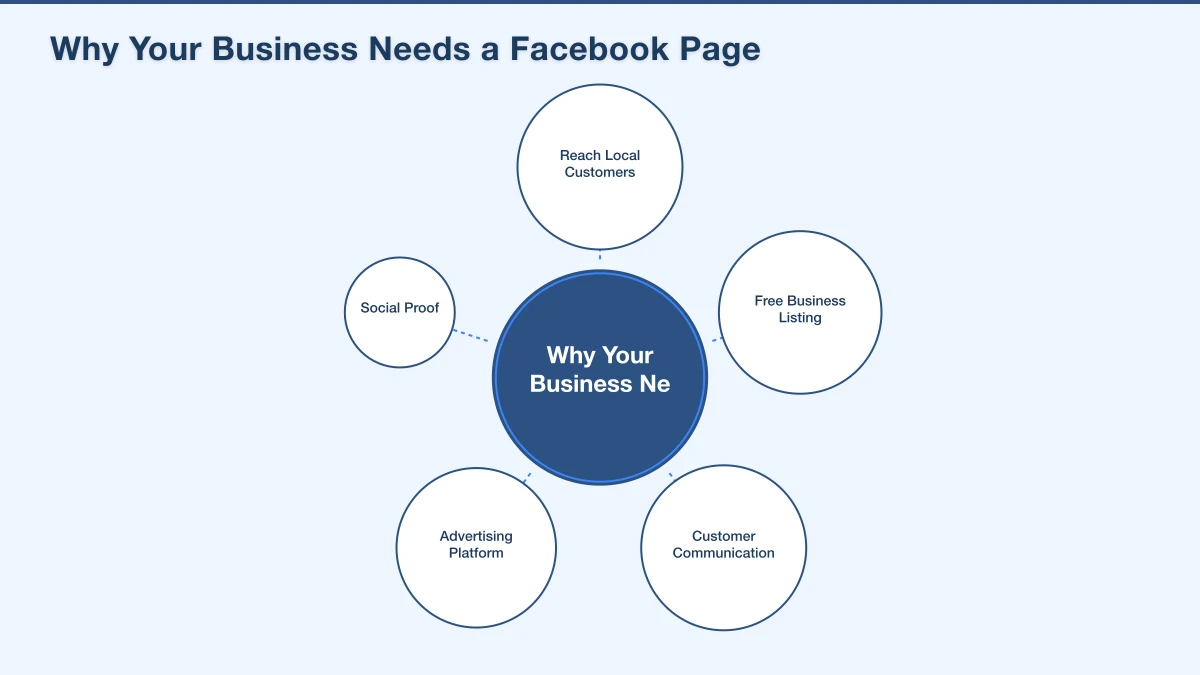
Why Your Business Needs a Facebook Page
Reach Local Customers
Facebook’s local targeting capabilities are excellent. People in your area can find your business, see your reviews, and connect with you easily.
Free Business Listing
Your Facebook page acts as a free online listing – complete with your address, phone number, opening hours, reviews, and photos.
Customer Communication
Many customers prefer to contact businesses through Facebook Messenger rather than calling. A Business Page gives you that communication channel.
Advertising Platform
Facebook’s advertising tools let you run highly targeted ads to people in your local area. You need a Business Page to run ads.
Social Proof
Reviews and recommendations on your Facebook page influence potential customers’ decisions.
Step-by-Step Setup Guide
Step 1: Create Your Page
- Log into your personal Facebook account (you need one to create a Business Page, but they remain separate)
- Click “Create” in the top menu, then select “Page”
- Choose a page name (your business name)
- Select a category that best describes your business (you can add up to three)
- Add a brief description of your business
- Click “Create Page”
Step 2: Add Your Profile Photo
Your profile photo appears in search results, comments, and messages. For most businesses, your logo works best.
Tips:
- Use a square image, at least 170 by 170 pixels
- Make sure it is recognisable at small sizes (it appears quite small in feeds and comments)
- Keep it simple and clear
- Use a transparent or branded background
Step 3: Add Your Cover Photo
Your cover photo is the large banner image at the top of your page. This is prime real estate for making an impression.
Tips:
- Use a high-quality image sized at 820 by 312 pixels (desktop) – it will be cropped differently on mobile
- Show your business, your team, your products, or a compelling branded image
- You can also use a video as your cover (which is eye-catching and engaging)
- Update it seasonally or for promotions
- Avoid too much text – keep it visual
Step 4: Complete Your Business Information
Go to “About” and fill in every available field:
Contact information:
- Phone number (use a local number when possible)
- Email address
- Website URL
Location:
- Street address (for businesses with a physical location)
- Service area (if you serve customers at their locations)
- Parking details (helpful for retail businesses)
Hours:
- Regular business hours
- Holiday hours (update these for public holidays)
About section: Write a clear, concise description of your business. Include:
- What you do
- Where you operate
- What makes you different
- A call to action
Keep it straightforward and customer-focused.
Price range: Add your approximate price range if applicable (shown as dollar signs).
Step 5: Add a Call-to-Action Button
Facebook lets you add a prominent CTA button at the top of your page. Options include:
- Book Now
- Contact Us
- Call Now
- Send Message
- Shop Now
- Learn More
- Sign Up
Choose the action most relevant to your business. For most service businesses, “Call Now” or “Contact Us” works well. For businesses with online booking, “Book Now” is ideal.
Step 6: Set Up Messenger
Facebook Messenger is how many customers will contact you. Set it up properly:
- Go to your page settings and select “Messaging”
- Turn on Messenger for your page
- Set up an instant reply – an automatic message that greets people when they first message you (for example, “Thanks for reaching out. We will get back to you within a few hours.”)
- Set up away messages for outside business hours
- Add frequently asked questions that people can tap for quick answers
Step 7: Create Your First Posts
Before you start promoting your page, add some content so it does not look empty when people visit.
Create three to five initial posts:
- An introduction post welcoming people to your page
- A post about your services or products
- A behind-the-scenes photo or team introduction
- A customer testimonial or review (with permission)
- A helpful tip related to your industry
Step 8: Invite People to Like Your Page
Once your page has some content, start building your audience:
- Invite your personal Facebook friends who might be interested
- Email your existing customers and ask them to follow your page
- Add your Facebook page link to your website, email signature, and business cards
- Share your page on any other social platforms you use
Optimising Your Page for Local Search
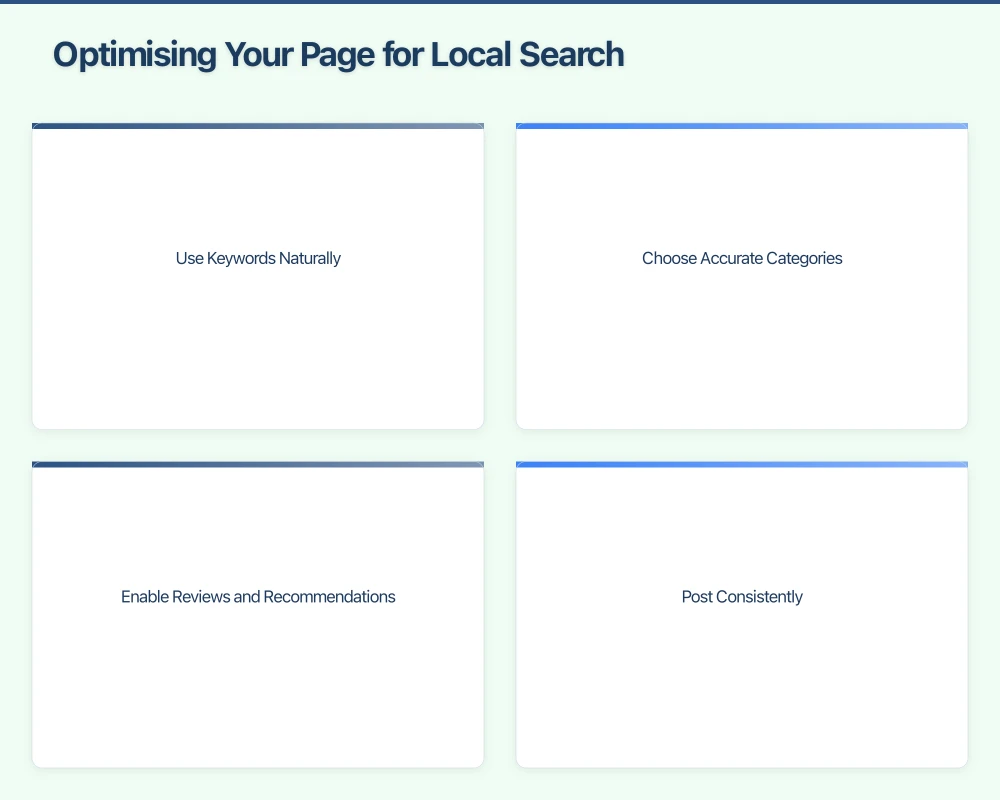
Use Keywords Naturally
Include relevant keywords in your page name (if natural), description, and about section. If you are a plumber in Castle Hill, make sure “Castle Hill” and “plumbing” appear in your page description.
Choose Accurate Categories
Facebook allows up to three categories. Choose the most specific and accurate options. “Plumber” is better than “Local Service.” Add secondary categories if relevant.
Enable Reviews and Recommendations
Make sure reviews are turned on for your page. Positive reviews boost your visibility and credibility. Ask happy customers to leave recommendations.
Post Consistently
Active pages rank better in Facebook’s search results. Aim to post at least three times per week.
Add Your Location
Ensure your physical address or service area is accurate. This helps your page appear when people search for businesses near them.
Content Strategy for Your Facebook Page
Types of Content That Work
Photos and images: Posts with images get significantly more engagement than text-only posts. Share photos of your work, team, products, or happy customers.
Videos: Video content gets the highest organic reach on Facebook. Even simple smartphone videos perform well. Show your process, introduce your team, or share tips.
Tips and advice: Share your expertise. A pest control company could post seasonal pest prevention tips. An accountant could share tax deadline reminders.
Local content: Engage with your community by sharing local news, events, or supporting other local businesses.
Promotions and offers: Share special deals, but keep promotional content to about 20 percent of your total posts.
Questions and polls: Ask your audience questions to encourage engagement. “What is your biggest challenge with [topic related to your business]?”
Posting Schedule
A manageable schedule for a small business:
- Monday: Tip or educational content
- Wednesday: Behind the scenes, team spotlight, or work showcase
- Friday: Customer story, promotion, or community content
- Plus: Daily Stories (casual, behind-the-scenes moments)
Facebook Page Management Tips
Respond Quickly
Facebook publicly displays how quickly you respond to messages. Aim to respond within an hour during business hours. Set up auto-responses for after hours.
Monitor Notifications
Check your page notifications daily. Respond to comments, messages, reviews, and mentions promptly.
Pin Important Posts
You can pin a post to the top of your page. Use this for:
- Your best-performing post
- A current promotion
- Important business announcements
- A welcome or introduction post
Use Facebook Insights
Facebook provides free analytics for your page. Check weekly to understand:
- Which posts get the most engagement
- When your audience is most active
- How your page is growing
- How people find your page
Keep Information Updated
Review your page information monthly. Update hours for holidays, add new services, refresh your cover photo, and keep everything current.
Common Mistakes to Avoid
- Using a personal profile instead of a Business Page: This limits your functionality and violates Facebook’s terms.
- Inconsistent posting: Going weeks without posting makes your page look abandoned.
- Ignoring messages and comments: This signals poor customer service.
- Only posting promotions: Provide value, not just sales pitches.
- Low-quality images: Blurry, dark, or unprofessional images reflect poorly on your business.
- Incomplete page information: Missing phone numbers, hours, or addresses frustrate potential customers.
- Not responding to negative reviews: Professional responses to criticism build credibility.
Get Your Page Live Today
Setting up a Facebook Business Page takes about an hour if you have your business information and photos ready. Here is your checklist:
- Create your page with your business name and category
- Add profile photo (logo) and cover photo
- Complete all business information
- Set up a CTA button
- Configure Messenger with auto-replies
- Publish three to five initial posts
- Invite existing contacts to follow your page
- Commit to a regular posting schedule
A well-maintained Facebook Business Page is a free marketing asset that works for your business around the clock. It helps people find you, builds trust through reviews and content, and gives you a platform to connect with your local community.
If you need help setting up your Facebook page or developing a social media strategy for your business, our Western Sydney team is here to help. Get in touch and let us get you started.
Your website’s performance depends on what’s behind it. Cloud Geeks provides the managed hosting, cloud, and IT support that keeps Australian SMBs online and secure.
Ash Ganda covers how Australian SMBs are using AI, automation, and digital strategy to grow without scaling costs proportionally.
If your business is also planning a customer-facing iOS or Android app — Awesome Apps builds cross-platform mobile apps for Australian SMBs.
Part of the Ganda Tech Services family, Cosmos Web Tech delivers specialist web design and digital marketing for Australian small and medium businesses.