Google Analytics Setup Guide for Small Business Owners
Your website is live, people are visiting, and you are hoping some of them are turning into customers. But are they? How many people visit your site each day? Where do they come from? Which pages do they look at? Do they contact you or leave without taking action?
Without analytics, you are flying blind. Google Analytics is a free tool that answers all of these questions and more. It is one of the most valuable tools available to small business owners, and setting it up is easier than you might think.
This guide walks you through setting up Google Analytics on your business website and understanding the data that matters most.
Why Google Analytics Matters
Understand Your Visitors
Know how many people visit your site, where they come from, what devices they use, and which pages they view. This information helps you make smarter decisions about your website and marketing.
Measure Marketing Results
If you are investing in SEO, social media, or paid advertising, analytics shows you which efforts are actually driving traffic and results.
Identify Problems
If a page has a very high bounce rate (people leaving quickly), there might be a problem with the content, design, or load time. Analytics reveals these issues.
Track Goals
Set up goals to track the actions that matter to your business – form submissions, phone calls, purchases, and bookings. This tells you whether your website is actually generating business.
Setting Up Google Analytics: Step by Step
Step 1: Create a Google Analytics Account
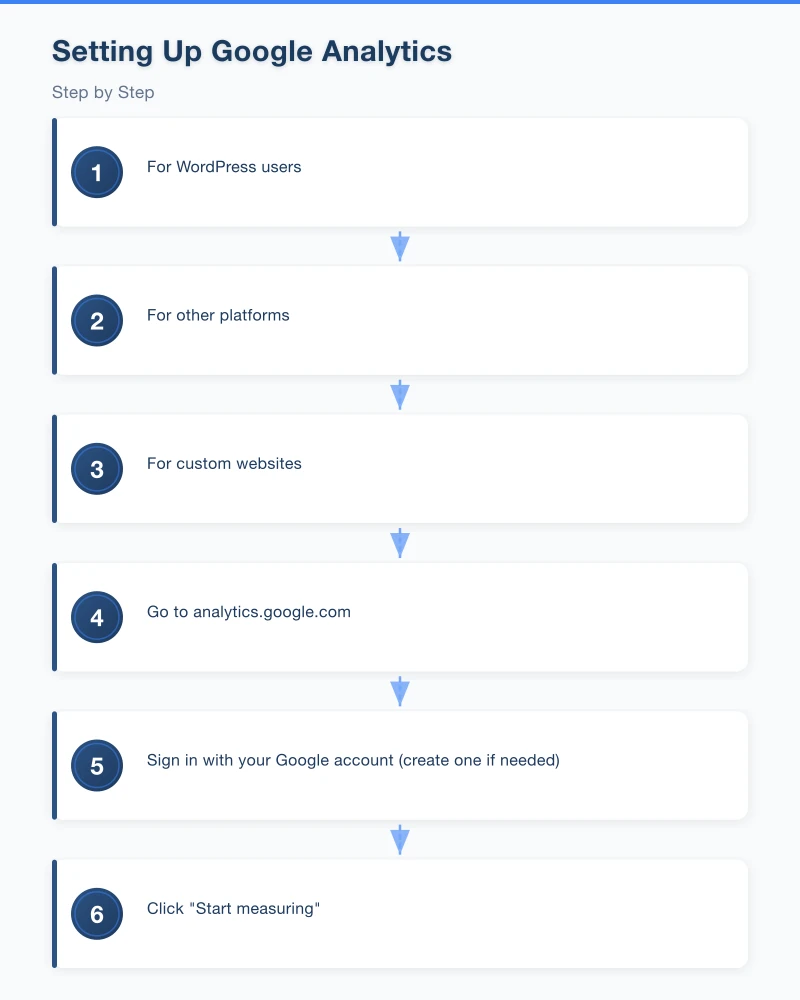
- Go to analytics.google.com
- Sign in with your Google account (create one if needed)
- Click “Start measuring”
- Enter your account name (your business name works fine)
- Choose your data sharing settings (the defaults are generally fine)
- Click “Next”
Step 2: Set Up a Property
A property represents your website in Google Analytics.
- Enter a property name (your website name)
- Select your reporting time zone (Australian Eastern Standard Time or your local time zone)
- Select your currency (Australian Dollar)
- Click “Next”
- Fill in your business details (industry, size)
- Click “Create”
Google Analytics is currently offering both Universal Analytics (the version most people are familiar with) and Google Analytics 4 (the newer version). If given the option, we recommend setting up both. Universal Analytics provides familiar reports, while Google Analytics 4 is where Google is heading in the future.
Step 3: Add the Tracking Code to Your Website
Google Analytics gives you a tracking code (a snippet of JavaScript) that needs to be added to every page of your website.
For WordPress users: The easiest method is using a plugin:
- Install a plugin like “Insert Headers and Footers” or “Site Kit by Google”
- Paste the tracking code into the header section
- Save changes
Alternatively, the Google Site Kit plugin connects your WordPress site to Google Analytics with a few clicks and no code copying required.
For other platforms: Most website builders (Squarespace, Wix, Shopify) have a dedicated field in their settings for Google Analytics. Simply paste your tracking ID or measurement ID.
For custom websites: Add the tracking code just before the closing head tag on every page.
Step 4: Verify It Is Working
After adding the code, verify that data is being collected:
- Visit your own website
- Go back to Google Analytics
- Click “Realtime” in the left menu
- You should see at least one active user (you)
If you see activity, your setup is working. It takes 24 to 48 hours for data to start appearing in the main reports.
Understanding the Key Reports
Google Analytics can be overwhelming at first. Here are the reports that matter most for small business owners.
Audience Overview
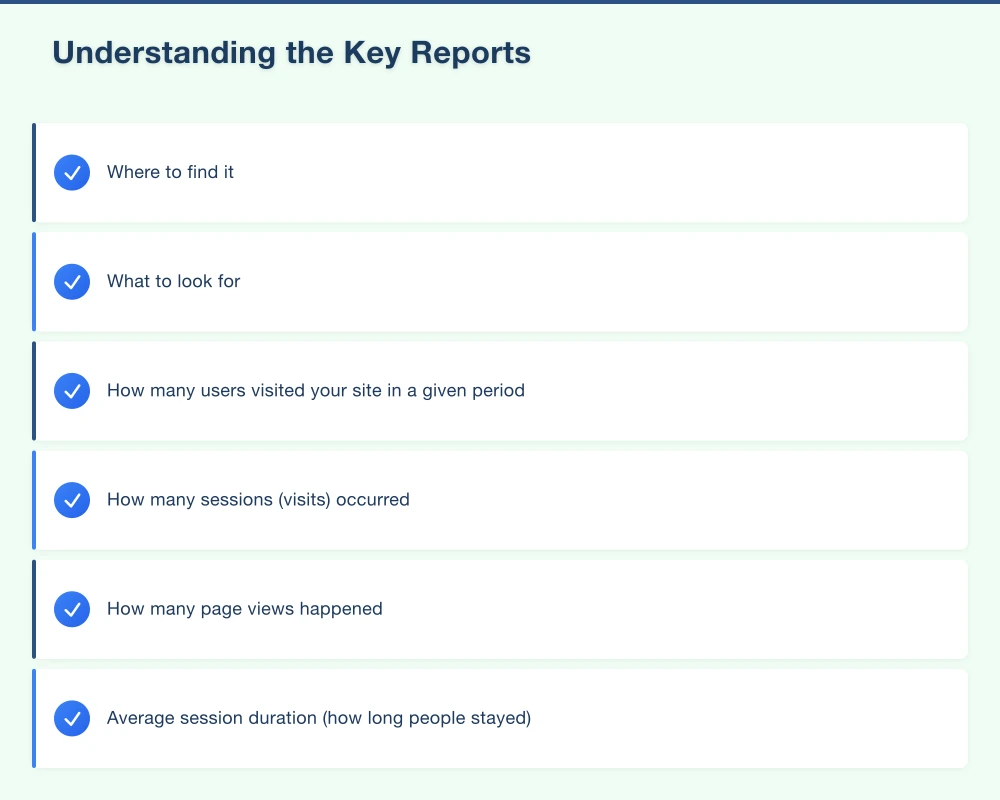
Where to find it: Audience section in the left menu
This tells you:
- How many users visited your site in a given period
- How many sessions (visits) occurred
- How many page views happened
- Average session duration (how long people stayed)
- Bounce rate (percentage of people who left after viewing only one page)
What to look for: Steady or growing traffic over time. A very high bounce rate (over 70 percent) on key pages might indicate a problem.
Acquisition Overview
Where to find it: Acquisition section in the left menu
This shows you where your visitors come from:
- Organic Search: People who found you through Google search
- Direct: People who typed your URL directly
- Social: People who came from social media
- Referral: People who clicked a link on another website
- Paid Search: People who clicked on your Google Ads (if running any)
What to look for: Which channels drive the most traffic and the best quality visitors (longer sessions, lower bounce rate, more conversions).
Behaviour Overview
Where to find it: Behaviour section in the left menu
This shows you what people do on your website:
- Which pages are most popular
- How long people spend on each page
- Which pages people exit from most often
- Site speed data
What to look for: Your most important pages (services, contact) should be among the most visited. Pages with very short average time may need better content.
Landing Pages Report
Where to find it: Behaviour then Site Content then Landing Pages
This shows you which pages people enter your site through. It reveals which pages are attracting visitors from search engines and other sources.
Geo and Device Reports
Where to find it: Audience section, then Geo or Mobile
These show you where your visitors are located geographically and what devices they use. For a Western Sydney business, most of your traffic should ideally come from your local area.
Setting Up Goals
Goals are one of the most important features in Google Analytics. They track the actions that matter to your business.
Common Goals for Small Business Websites:
- Contact form submissions
- Phone number clicks (click-to-call)
- Email link clicks
- Booking completions
- Purchase completions
- Newsletter signups
How to Set Up a Goal:
- Go to Admin (gear icon at the bottom left)
- In the View column, click “Goals”
- Click “New Goal”
- Choose a goal type:
- Destination: Track when someone reaches a specific page (like a “Thank You” page after form submission)
- Event: Track specific interactions (like a button click)
- Configure the goal details
- Save
The most common setup for small businesses is a destination goal that tracks when someone reaches a thank-you page after submitting a contact form.
Essential Settings to Configure
Filter Out Your Own Traffic
You do not want your own visits inflating your data. Create a filter to exclude your IP address:
- Go to Admin
- Under the View column, click “Filters”
- Click “Add Filter”
- Choose “Exclude” traffic from your IP address
- Enter your IP address (search “what is my IP” on Google to find it)
Connect Google Search Console
Linking Google Search Console to Google Analytics gives you search query data – the actual words people type into Google to find your site.
- Go to Admin
- Under the Property column, click “All Products” or “Product Linking”
- Select “Search Console” and follow the prompts
Set Up Site Search Tracking
If your website has a search function, enable site search tracking to see what visitors search for on your site. This reveals what people are looking for and potentially not finding.
How Often Should You Check Analytics?
For most small business owners, a weekly or fortnightly check is sufficient. Do not obsess over daily fluctuations – look for trends over weeks and months.
Weekly Quick Check (5 minutes):
- Overall traffic compared to the previous week
- Any unusual spikes or drops
- Goal completions for the week
Monthly Review (30 minutes):
- Traffic trends over the month
- Top traffic sources and how they are performing
- Most popular pages
- Goal completions and conversion rates
- Any pages with unusually high bounce rates
- Device breakdown (mobile vs desktop)
Quarterly Deep Dive (1 hour):
- Compare this quarter to the previous quarter and the same quarter last year
- Evaluate which marketing channels deliver the best results
- Identify content opportunities based on popular pages and search queries
- Review and update your goals if needed
Common Mistakes to Avoid
- Not setting up goals: Without goals, you are just counting visitors without knowing if they are becoming customers.
- Not filtering your own traffic: Your visits will skew the data, especially for low-traffic sites.
- Checking too often: Daily data is noisy. Focus on weekly and monthly trends.
- Ignoring mobile data: If 60 percent of your traffic is mobile but your mobile experience is poor, you have a problem.
- Not connecting Search Console: You are missing valuable keyword data.
- Making the code change incorrectly: Double-check that the tracking code is on every page and loading properly.
Take Action on Your Data
Analytics is only valuable if you act on what it tells you. Here are examples of data-driven actions:
- High bounce rate on services page: Rewrite the content to better match what visitors expect.
- Most traffic from mobile: Prioritise your mobile experience.
- Top traffic from organic search: Invest more in SEO and content marketing.
- Low conversion rate: Improve your calls to action and contact forms.
- Popular blog post topic: Create more content on similar topics.
Get Set Up Today
Google Analytics is free, and setting it up takes about 30 minutes. Here is your action plan:
- Create your Google Analytics account
- Add the tracking code to your website
- Verify data is being collected
- Set up at least one goal (form submission or phone click)
- Filter out your own traffic
- Connect Google Search Console
- Check your data weekly
Understanding your website data is one of the most empowering things you can do as a business owner. It takes the guesswork out of your marketing and helps you invest your time and money where it matters most.
If you need help setting up Google Analytics or making sense of your data, our team is here to help. We set up and review analytics for businesses across Western Sydney.
Your website’s performance depends on what’s behind it. Cloud Geeks provides the managed hosting, cloud, and IT support that keeps Australian SMBs online and secure.
Ash Ganda covers how Australian SMBs are using AI, automation, and digital strategy to grow without scaling costs proportionally.
If your business is also planning a customer-facing iOS or Android app — Awesome Apps builds cross-platform mobile apps for Australian SMBs.
Part of the Ganda Tech Services family, Cosmos Web Tech delivers specialist web design and digital marketing for Australian small and medium businesses.