How to Create a Google Ads Campaign Step by Step
Google Ads is one of the most effective ways for small businesses to get in front of customers who are actively searching for their products or services. But if you have never set up a campaign before, the platform can feel overwhelming.
This step-by-step guide walks you through creating your first Google Ads search campaign, from account setup to launch. We will focus on search ads since they are the most relevant for most local businesses.
Step 1: Set Up Your Google Ads Account
If you do not already have a Google Ads account, head to ads.google.com and sign up. You will need a Google account (the same one you use for Gmail or Google Business Profile works fine).
When you first sign up, Google will try to guide you through a “Smart Campaign” setup. While Smart Campaigns are simpler, they give you less control. I recommend clicking “Switch to Expert Mode” at the bottom of the setup screen. This gives you access to all the campaign settings and targeting options.
Step 2: Choose Your Campaign Goal
Google Ads will ask you what you want to achieve. The main options include:
- Sales: Drive purchases on your website
- Leads: Generate enquiries, form submissions, or phone calls
- Website traffic: Get more visitors to your site
For most local service businesses in Western Sydney, “Leads” is the best choice. For e-commerce businesses, “Sales” makes more sense.
After selecting your goal, choose “Search” as your campaign type. Search campaigns show text ads in Google search results when someone searches for keywords related to your business.
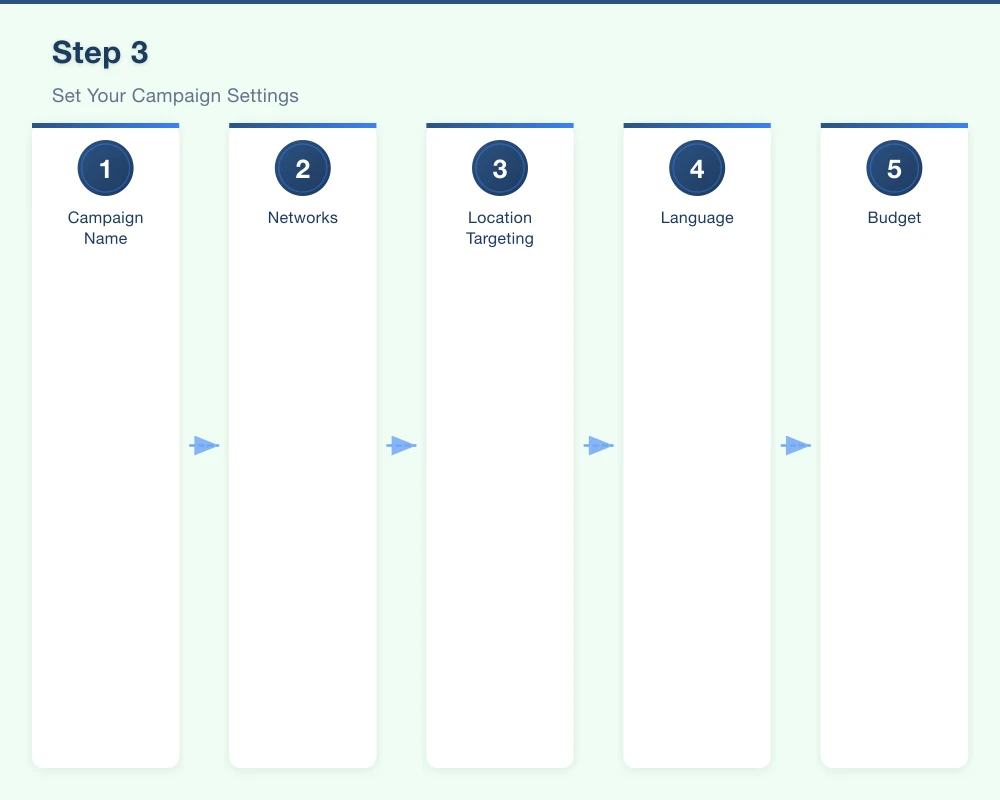
Step 3: Set Your Campaign Settings
Campaign Name
Give your campaign a descriptive name like “Plumbing Services - Western Sydney” or “Wedding Cakes - Sydney.” A clear name helps you stay organised, especially if you create multiple campaigns later.
Networks
You will see options for “Google Search Network” and “Google Display Network.” For your first campaign, uncheck the Display Network. Display ads appear on websites and apps across the internet and require a different strategy. Focus on search first.
Location Targeting
This is critical for local businesses. Set your target location to the area you serve. Options include:
- Specific suburbs or postcodes: Best for very local businesses
- Radius targeting: Set a radius around your business location (for example, 30 kilometres from Parramatta)
- Regions: Target broader areas like Greater Western Sydney or New South Wales
Make sure you select “Presence: People in or regularly in your targeted locations” rather than “Presence or interest,” which can show your ads to people outside your service area.
Language
Set this to English (or whatever language your customers use).
Budget
Set a daily budget you are comfortable with. Google will aim to spend this amount each day, though actual daily spend can vary. For a starting budget, $20 to $50 AUD per day is reasonable for most local businesses.
Remember, you only pay when someone clicks your ad. If your daily budget is $30 and the average cost per click in your industry is $3, you can expect around 10 clicks per day.
Bidding Strategy
For beginners, “Maximise Clicks” is a straightforward bidding strategy that gets you the most clicks within your budget. As you gain experience and set up conversion tracking, you can switch to “Maximise Conversions” or “Target CPA” for better performance.
Step 4: Create Your Ad Groups
Ad groups organise your ads and keywords into themes. Each ad group should focus on a specific service or product.
For example, if you run a cleaning business, you might create:
- Ad Group 1: House Cleaning (keywords related to residential cleaning)
- Ad Group 2: Office Cleaning (keywords related to commercial cleaning)
- Ad Group 3: End of Lease Cleaning (keywords related to bond cleaning)
Each ad group has its own set of keywords and ads, which allows you to show relevant ads for each type of search.
Step 5: Choose Your Keywords
Keywords are the search terms that trigger your ads. For each ad group, choose keywords that match what your potential customers are searching for.
Keyword Match Types
Google Ads offers different match types that control how closely a search needs to match your keyword:
- Broad match: Your ad shows for searches related to your keyword, including variations and related topics. For example, the keyword “plumber parramatta” might show your ad for “pipe repair near parramatta” or “emergency plumbing western sydney.”
- Phrase match: Your ad shows for searches that include your keyword’s meaning. Use quotation marks: “plumber parramatta.” This is more targeted than broad match.
- Exact match: Your ad shows only for searches that match the exact meaning of your keyword. Use square brackets: [plumber parramatta]. This is the most targeted option.
For beginners, starting with phrase match is a good balance between reach and relevance.
Choosing Keywords
Think about what your customers search for. Use Google Keyword Planner (available within Google Ads) to find keyword ideas and see estimated search volumes.
Aim for 10 to 20 keywords per ad group. Include a mix of:
- Your service plus location: “electrician blacktown”
- Your service plus qualifier: “emergency electrician”
- Problem-based keywords: “power outage repair”
Negative Keywords
Negative keywords prevent your ads from showing for irrelevant searches. For example, if you are a paid service, you might add “free” as a negative keyword. If you do not operate in a particular area, add that area as a negative keyword.
Common negative keywords include: free, DIY, jobs, salary, course, training, and cheap (if you are not competing on price).
Step 6: Write Your Ads
Google Ads uses Responsive Search Ads, which allow you to provide multiple headlines and descriptions. Google then tests different combinations to find what works best.
You can provide up to 15 headlines (30 characters each) and 4 descriptions (90 characters each).
Tips for Writing Effective Ads
Include your keyword in at least one headline. If someone searches for “plumber parramatta,” seeing “Plumber in Parramatta” in the ad headline reinforces relevance.
Highlight your unique selling points. What makes you different? Fast response times? Years of experience? Local ownership? Free quotes? Include these in your headlines and descriptions.
Include a clear call to action. “Call Now for a Free Quote,” “Book Online Today,” or “Get a Free Estimate” tell people what to do next.
Use numbers and specifics. “15 Years Experience” or “Same Day Service” are more compelling than vague claims.
Mention location. For local businesses, mentioning your service area in the ad builds trust and relevance. “Serving Western Sydney” or “Based in Parramatta” works well.
Example Headlines
- Licensed Plumber in Parramatta
- 24/7 Emergency Plumbing
- Fast, Reliable Service
- Free Quotes Available
- Over 15 Years Experience
- Local Western Sydney Plumber
- Same Day Service Available
Example Descriptions
- Professional plumbing services across Western Sydney. Licensed, insured, and locally owned. Call today for a free, no-obligation quote.
- Blocked drains, leaking taps, hot water systems, and more. We are available 24/7 for emergencies. Call now or book online.
Step 7: Set Up Ad Extensions
Ad extensions add extra information to your ads and can significantly improve performance. The most important extensions for local businesses include:
Call Extension: Shows your phone number with your ad. Customers can tap to call directly from the search results.
Location Extension: Shows your business address. This is linked to your Google Business Profile.
Sitelink Extensions: Add links to specific pages on your website, like your Services page, About page, or Contact page.
Callout Extensions: Add short text snippets highlighting benefits like “Free Quotes,” “Locally Owned,” or “Licensed and Insured.”
Setting up extensions is free and they only show when Google determines they will improve ad performance.
Step 8: Set Up Conversion Tracking
Before you launch, set up conversion tracking so you can measure results. A conversion is any valuable action a customer takes, such as:
- Submitting a contact form
- Calling your business
- Making a purchase
Google Ads provides tracking codes you can add to your website to track these actions. If you use Google Analytics, you can also import goals from Analytics into Google Ads.
Without conversion tracking, you are flying blind. You will know how many clicks you are getting, but not whether those clicks are turning into actual enquiries or sales.
Step 9: Review and Launch
Before clicking “Publish,” review everything:
- Are your location settings correct?
- Are your keywords relevant and properly matched?
- Do your ads read well and include calls to action?
- Is your daily budget set correctly?
- Are ad extensions set up?
- Is conversion tracking in place?
Once you are happy with everything, hit publish. Your ads will go through a review process (usually within a day) and then start showing.
Step 10: Monitor and Optimise
Launching your campaign is just the beginning. In the first week or two, check your account daily to:
- Review which search terms are triggering your ads
- Add negative keywords for irrelevant searches
- Check which ads are performing best
- Monitor your cost per click and cost per conversion
- Adjust bids and budgets as needed
Google Ads is not a set-and-forget platform. Regular monitoring and optimisation is what separates successful campaigns from wasted budgets.
Final Tips
- Start with a modest budget and increase it as you learn what works
- Focus on one campaign type (search) before branching into display or video
- Do not expect instant results; give your campaign at least two to four weeks to gather enough data for meaningful optimisation
- Keep your landing pages relevant to your ads; if your ad is about plumbing, the landing page should be about plumbing, not your homepage
If you would rather have an expert handle your Google Ads, Cosmo Web Tech manages Google Ads campaigns for businesses across Western Sydney. We can set up, manage, and optimise your campaigns to get the best return on your advertising spend.
Your website’s performance depends on what’s behind it. Cloud Geeks provides the managed hosting, cloud, and IT support that keeps Australian SMBs online and secure.
Ash Ganda covers how Australian SMBs are using AI, automation, and digital strategy to grow without scaling costs proportionally.
If your business is also planning a customer-facing iOS or Android app — Awesome Apps builds cross-platform mobile apps for Australian SMBs.
Part of the Ganda Tech Services family, Cosmos Web Tech delivers specialist web design and digital marketing for Australian small and medium businesses.