Why Website Security Matters for Australian Businesses
Here’s a number that should get your attention: 43% of cyberattacks target small businesses. And 60% of those businesses close within six months of being hacked.
For Western Sydney business owners, your website is often the first thing potential customers see. If it’s compromised - showing spam, redirecting to dodgy sites, or leaking customer data - the damage to your reputation can be permanent.
The good news? Most attacks target easy victims. By following the checklist in this article, you’ll be harder to hack than 90% of similar websites. Attackers will move on to easier targets.
How Websites Get Hacked
Before we fix the problem, let’s understand what we’re protecting against. Most website hacks fall into these categories:
Brute Force Attacks: Automated programs try thousands of password combinations until they find one that works. If your admin password is “password123”, you’re a sitting duck.
Outdated Software: Hackers find vulnerabilities in old versions of WordPress, plugins, or themes. If you’re not updating regularly, known security holes stay open.
SQL Injection: Attackers insert malicious code through forms on your website (contact forms, search boxes). Poorly built forms can give hackers access to your entire database.
Cross-Site Scripting (XSS): Malicious code is injected into your site, then runs in visitors’ browsers. Used to steal login credentials or redirect users.
Phishing: Someone tricks you into giving up your login details through fake emails or websites. Not a technical attack, but extremely common.
Insecure Hosting: Cheap hosting that skimps on security can expose your site through no fault of your own.
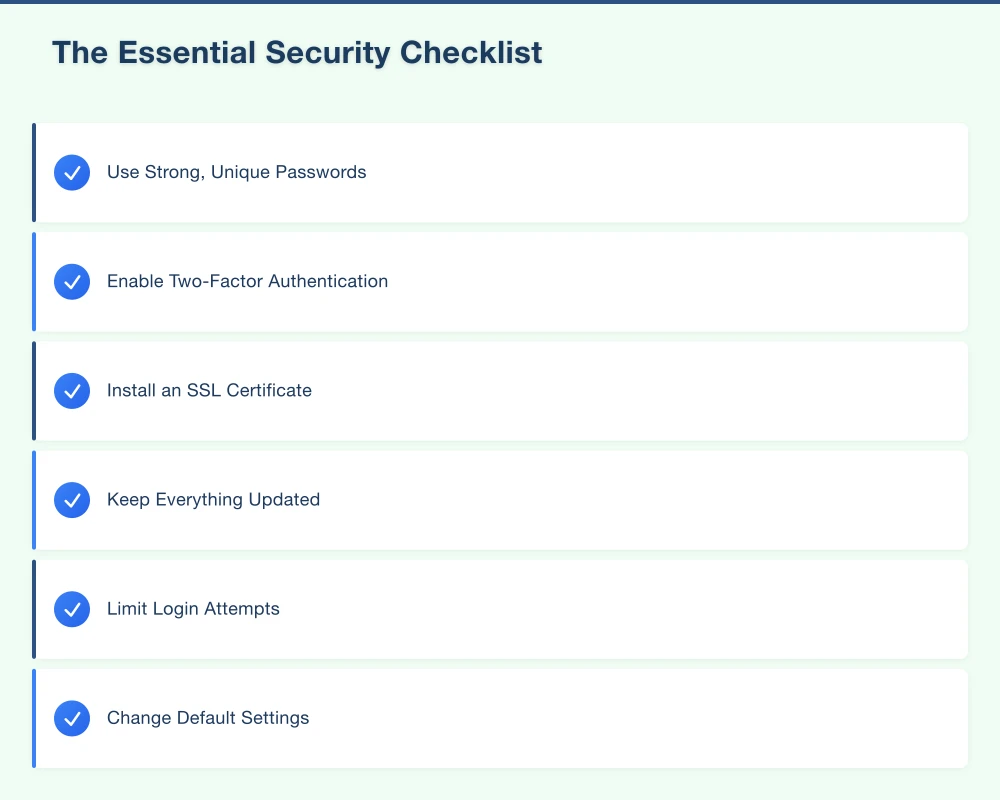
The Essential Security Checklist
Let’s go through everything you need to do, organised by priority.
Priority 1: The Basics (Do These Today)
Use Strong, Unique Passwords
This sounds obvious, but it’s where most breaches start. Your website admin password should be:
- At least 16 characters long
- A mix of uppercase, lowercase, numbers, and symbols
- Completely unique (not used anywhere else)
- Not based on dictionary words or personal information
Use a password manager like Bitwarden (free) or 1Password to generate and store complex passwords.
Enable Two-Factor Authentication
Even if someone gets your password, two-factor authentication (2FA) stops them. When logging in, you’ll need your password PLUS a code from your phone.
For WordPress, plugins like Wordfence or Two Factor add this functionality. For other platforms, check your security settings.
Install an SSL Certificate
If your website address starts with “http://” instead of “https://”, you’re running without encryption. This means:
- Data between your site and visitors can be intercepted
- Google marks your site as “Not Secure”
- Customers lose trust
Most hosting providers offer free SSL certificates through Let’s Encrypt. If yours doesn’t, ask why - and consider switching hosts.
Keep Everything Updated
WordPress, plugins, themes, server software - all of it needs regular updates. Enable automatic updates where possible. For things that need manual updating, set a weekly reminder.
One outdated plugin with a known vulnerability is all a hacker needs.
Priority 2: Strengthening Your Defences
Limit Login Attempts
By default, most websites allow unlimited login attempts. This makes brute force attacks easy.
Install a plugin or enable settings that:
- Lock accounts after 5 failed attempts
- Temporarily ban IP addresses that try too many times
- Alert you to suspicious login activity
For WordPress, Wordfence and Limit Login Attempts Reloaded do this well.
Change Default Settings
Hackers know the defaults. If your WordPress admin URL is /wp-admin, that’s where they’ll attack. If your database tables start with wp_, that’s easier to target.
Consider:
- Changing the admin login URL to something non-obvious
- Using a different database prefix
- Not using “admin” as your username
Set Proper File Permissions
Every file and folder on your website has permission settings determining who can read, write, or execute them. Incorrect permissions are a common vulnerability.
For most websites:
- Folders should be 755
- Files should be 644
- wp-config.php (WordPress) should be 440 or 400
If these numbers mean nothing to you, ask your hosting provider or developer to check.
Regular Backups
Backups aren’t exactly security, but they’re your insurance policy when security fails.
Your backup strategy should include:
- Daily automated backups
- Backups stored separately from your hosting (different server or cloud storage)
- Regular testing to confirm backups actually work
- At least 30 days of backup history
Services like UpdraftPlus (WordPress), Akeeba (Joomla), or your hosting provider’s backup tools can automate this.
Priority 3: Advanced Protection
Web Application Firewall (WAF)
A WAF sits between your website and the internet, filtering out malicious traffic before it reaches your server. Think of it as a bouncer checking IDs at the door.
Options include:
- Cloudflare (free tier available)
- Sucuri (paid, but excellent)
- Wordfence (WordPress-specific)
For most Western Sydney small businesses, Cloudflare’s free tier provides significant protection with minimal setup.
Security headers tell browsers how to handle your content, preventing various attacks. Key headers include:
- Content-Security-Policy: Controls what resources can load on your pages
- X-Frame-Options: Prevents your site being embedded in malicious frames
- X-Content-Type-Options: Prevents browser MIME-type sniffing
- Strict-Transport-Security: Forces HTTPS connections
Your developer can add these. Test your current headers at securityheaders.com.
Monitor for Malware
Even with protection, you need to know if something gets through. Malware monitoring scans your website regularly and alerts you to problems.
Services like Sucuri, Wordfence, or your hosting provider’s security tools can provide this. Look for:
- Daily automated scans
- Real-time alerts for detected issues
- Blacklist monitoring (checking if your site is flagged by Google or antivirus companies)
Database Security
Your database contains everything - content, user data, configurations. Protect it by:
- Using strong database passwords (different from admin passwords)
- Restricting database access to only necessary IP addresses
- Regular database backups (separate from file backups)
- Removing unnecessary database users
Priority 4: Human Security
Technical measures only work if people follow good practices.
Train Your Team
Everyone with website access should understand:
- How to identify phishing emails
- Why unique passwords matter
- What suspicious activity looks like
- When to report potential security issues
Limit Access
Only give people the access they need. A content editor doesn’t need administrator privileges. When someone leaves your business, remove their access immediately.
Verify Requests
If you receive an email asking you to urgently update payment details, reset passwords, or provide sensitive information - verify through a different channel. Call the person who supposedly sent it using a number you already have, not one from the suspicious email.
WordPress-Specific Security
Since many Western Sydney businesses use WordPress, here’s specific guidance:
Essential WordPress Security Plugins
- Wordfence: Firewall, malware scanning, login security
- UpdraftPlus: Automated backups
- Two Factor: 2FA authentication
WordPress Hardening Steps
- Remove the default “admin” username
- Disable file editing in the dashboard (add
define('DISALLOW_FILE_EDIT', true);to wp-config.php) - Hide your WordPress version number
- Disable XML-RPC if not needed
- Limit REST API access
- Remove unused themes and plugins completely (not just deactivate)
Choose Plugins Carefully
Every plugin is potential attack surface. Before installing:
- Check when it was last updated (avoid abandoned plugins)
- Read reviews for security concerns
- Verify the developer is reputable
- Ask: do you really need this functionality?
What to Do If You Get Hacked
Despite best efforts, breaches happen. Here’s your response plan:
Immediate Actions (First Hour)
- Don’t panic, but act quickly
- Change all passwords (hosting, WordPress, database, FTP)
- Put site in maintenance mode if possible
- Contact your hosting provider
- Check if you have clean backups
Investigation (Next Few Hours)
- Document everything you observe
- Check hosting logs for suspicious activity
- Scan for malware using multiple tools
- Identify how the breach occurred
Recovery (Next Day)
- Clean the infection (or restore from clean backup)
- Fix the vulnerability that allowed the breach
- Monitor closely for recurrence
- Notify affected parties if customer data was exposed
Post-Recovery
- Implement additional security measures
- Request Google review if you were blacklisted
- Document lessons learned
- Update your security practices
Australian-Specific Considerations
Running a business in Australia has specific security requirements:
Notifiable Data Breaches Scheme
If your business has annual turnover over $3 million, you must notify the Office of the Australian Information Commissioner (OAIC) and affected individuals of eligible data breaches. Smaller businesses handling health information or tax file numbers also fall under this scheme.
Know your obligations before a breach happens.
Australian Cyber Security Centre Resources
The ACSC provides free resources for Australian businesses:
- cyber.gov.au has guides and alerts
- The “Small Business Cyber Security Guide” is excellent starting point
- You can report cybercrime to ReportCyber
Local Hosting Considerations
Hosting your website on Australian servers can improve both performance for local visitors and potentially simplify compliance with Australian data regulations.
Security Audit Checklist
Here’s a condensed checklist to review quarterly:
Passwords and Access
- All admin passwords are strong and unique
- Two-factor authentication is enabled
- Old user accounts have been removed
- Access levels are appropriate for each user
Software Updates
- WordPress/CMS is current version
- All plugins are updated
- Theme is updated
- Server software is current
Monitoring and Backups
- Malware scans are running daily
- Backups are running and verified
- Security alerts are being monitored
- Login attempts are being logged
Technical Configuration
- SSL certificate is valid and working
- Security headers are properly configured
- File permissions are correct
- Database is secured
Getting Help
Website security can feel overwhelming. You don’t have to do it alone.
For Self-Managed Sites
- Start with the Priority 1 checklist today
- Work through remaining priorities over the next month
- Set quarterly security review reminders
For Professional Help If you’d rather focus on running your business, security services can handle this for you. Look for providers who offer:
- Initial security audit
- Ongoing monitoring and maintenance
- Rapid response to incidents
- Regular reporting
At Cosmos Web Tech, we provide security audits and ongoing protection for Western Sydney businesses. We’ll assess your current setup, fix vulnerabilities, and keep your site protected going forward.
Don’t wait until you’re hacked. Prevention is far cheaper than recovery. Get in touch for a free security assessment - we’ll tell you exactly where you stand and what needs attention.
Your business website is valuable. Protect it accordingly.
Your website’s performance depends on what’s behind it. Cloud Geeks provides the managed hosting, cloud, and IT support that keeps Australian SMBs online and secure.
Ash Ganda covers how Australian SMBs are using AI, automation, and digital strategy to grow without scaling costs proportionally.
If your business is also planning a customer-facing iOS or Android app — Awesome Apps builds cross-platform mobile apps for Australian SMBs.
Part of the Ganda Tech Services family, Cosmos Web Tech delivers specialist web design and digital marketing for Australian small and medium businesses.