Introduction
Imagine trying to use a website without being able to see the screen, hear audio content, or use a mouse. For millions of Australians living with disabilities, this is reality. When websites are not built with accessibility in mind, these potential customers are effectively turned away.
Website accessibility means designing and building your site so that people with disabilities can use it effectively. This is not just ethically right–it is increasingly a legal requirement and a smart business decision.
For small businesses in Western Sydney, accessibility might seem like a concern for larger organisations. But the principles apply to businesses of all sizes, and the benefits extend beyond compliance. This guide explains what website accessibility means, why it matters, and how to make practical improvements.
Understanding Web Accessibility
What Is Web Accessibility?
Web accessibility ensures that people with various disabilities can perceive, understand, navigate, and interact with websites. Disabilities that affect web use include:
Visual Impairments: Blindness, low vision, colour blindness. Users may rely on screen readers that convert text to speech or braille.
Hearing Impairments: Deafness or hard of hearing. Users cannot access audio content without captions or transcripts.
Motor Impairments: Limited fine motor control, paralysis, or tremors. Users may navigate using keyboard only, voice commands, or alternative input devices.
Cognitive Impairments: Learning disabilities, attention disorders, or memory issues. Users benefit from clear structure, simple language, and consistent navigation.
The WCAG Standard
The Web Content Accessibility Guidelines (WCAG) are the international standard for web accessibility. Currently at version 2.2, WCAG provides detailed technical criteria organised around four principles:
Perceivable: Information must be presentable in ways users can perceive. Not everyone can see or hear, so alternatives are needed.
Operable: Interface components must be usable. Not everyone uses a mouse, so keyboard and alternative navigation must work.
Understandable: Information and interface operation must be understandable. Clear language and predictable behaviour help.
Robust: Content must be robust enough to work with current and future technologies, including assistive technologies.
Compliance Levels
WCAG defines three levels of conformance:
Level A: Minimum accessibility. Addresses the most severe barriers.
Level AA: Addresses most common barriers. The target for most legal requirements.
Level AAA: Highest level. Often not achievable for all content.
For most small businesses, Level AA compliance is the appropriate target.
Why Accessibility Matters for Small Businesses
Legal Requirements in Australia
Australian law requires accessibility in many contexts:
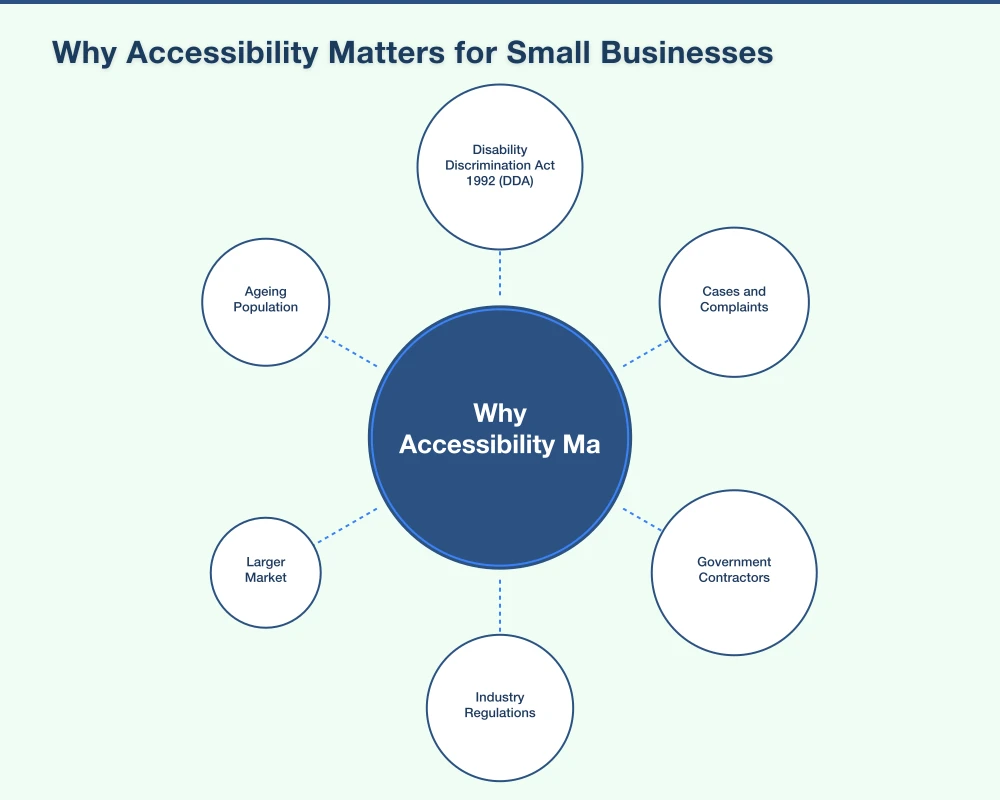
Disability Discrimination Act 1992 (DDA): Prohibits discrimination based on disability. While not explicitly mentioning websites, legal interpretations include web accessibility under “access to services.”
Cases and Complaints: The Australian Human Rights Commission has received complaints about inaccessible websites. Several have resulted in organisations being required to remediate their sites.
Government Contractors: Businesses providing services to government often face explicit accessibility requirements.
Industry Regulations: Some industries (healthcare, finance, education) have additional accessibility obligations.
The legal landscape is evolving. While enforcement against small businesses has been limited, the trend is toward greater accountability.
The Business Case
Beyond compliance, accessibility makes business sense:
Larger Market: Approximately 18% of Australians have a disability. An inaccessible website excludes potential customers.
Ageing Population: As people age, they often experience vision, hearing, and motor changes. Accessibility helps older customers.
SEO Benefits: Many accessibility practices (descriptive headings, alt text, clear structure) also improve search engine optimisation.
Better User Experience: Accessible design typically improves usability for everyone, not just users with disabilities.
Brand Reputation: Demonstrating commitment to inclusion builds positive brand perception.
Future-Proofing: Building accessible now costs less than retrofitting later.
Western Sydney Context
Western Sydney has diverse communities with varying accessibility needs. Businesses serving local residents, including significant multicultural populations and ageing demographics, benefit from accessible, user-friendly websites.
Local government and community organisations increasingly prioritise accessibility, creating expectations that flow through to the broader business community.
Common Accessibility Issues
Images Without Alt Text
The Problem: Screen readers cannot describe images without alternative text. Users miss important visual information.
The Solution: Add descriptive alt text to all meaningful images. Alt text should convey the image’s purpose or content.
Example:
- Poor: alt=“”
- Generic: alt=“image”
- Better: alt=“Team meeting in our Parramatta office”
- Descriptive: alt=“Four team members reviewing project plans at a round table in our Parramatta office”
Decorative Images: For images that are purely decorative, use empty alt text (alt=“”) so screen readers skip them.
Missing or Inadequate Headings
The Problem: Screen reader users navigate by headings. Skipped heading levels or missing headings make navigation difficult.
The Solution: Use proper heading hierarchy (H1, H2, H3) in logical order. Do not skip levels (H1 to H3 without H2).
Example:
H1: Our Plumbing Services
  H2: Emergency Plumbing
    H3: Available 24/7
  H2: Bathroom Renovations
  H2: Hot Water Systems
Poor Colour Contrast
The Problem: Low contrast between text and background makes content hard to read for users with low vision or colour blindness.
The Solution: Ensure sufficient contrast ratios. WCAG requires 4.5:1 for normal text and 3:1 for large text.
Testing: Use free tools like the WebAIM Contrast Checker to verify your colour combinations meet requirements.
Inaccessible Forms
The Problem: Form fields without labels, unclear error messages, or forms that do not work with keyboard navigation exclude many users.
The Solution:
- Associate labels with form fields
- Provide clear error messages that explain the problem
- Ensure forms can be completed using keyboard only
- Indicate required fields clearly
Missing Keyboard Navigation
The Problem: Some users cannot use a mouse. If your site only works with mouse clicks, they cannot navigate.
The Solution:
- Ensure all interactive elements are reachable with Tab key
- Provide visible focus indicators
- Make sure menus, buttons, and links work with Enter/Space keys
- Avoid keyboard traps (where focus gets stuck)
Auto-Playing Media
The Problem: Unexpected audio or video is disorienting and problematic for screen reader users. Auto-playing content can also trigger seizures in some users.
The Solution: Do not auto-play audio or video. If you must auto-play, provide prominent controls to pause or stop.
Missing Video Captions
The Problem: Deaf and hard-of-hearing users cannot access audio content in videos.
The Solution: Provide accurate captions for all video content with audio. Auto-generated captions often contain errors and should be reviewed.
Practical Steps for Small Businesses
Start with an Audit
Before making changes, understand your current state:
Automated Testing: Tools like WAVE (wave.webaim.org) or Google Lighthouse scan for common issues. These catch obvious problems but miss others.
Keyboard Testing: Try navigating your entire site using only the keyboard (Tab, Enter, arrow keys). Can you access everything?
Screen Reader Testing: Try a screen reader (VoiceOver on Mac, NVDA on Windows) to experience your site as blind users do.
Manual Review: Check images for alt text, forms for labels, and content for clear structure.
Quick Wins
Some improvements take minutes but have significant impact:
Add Alt Text to Images: Go through your site and add descriptive alt text to all images.
Check Colour Contrast: Verify your text colours have sufficient contrast against backgrounds.
Add Form Labels: Ensure every form field has an associated label.
Review Headings: Confirm headings follow logical hierarchy.
Enable Keyboard Navigation: Test and fix any elements that cannot be reached by keyboard.
Working with Your Web Developer
If you have a web developer, discuss accessibility:
Questions to Ask:
- Was accessibility considered in the site build?
- Does the site meet WCAG 2.1 Level AA?
- Can you provide an accessibility audit?
- What would be required to improve accessibility?
Setting Expectations: Include accessibility requirements in any future web development projects. It is easier and cheaper to build accessible from the start.
Choosing Accessible Themes and Platforms
If you are building a new site or redesigning:
WordPress: Choose themes explicitly designed for accessibility. Look for “accessibility-ready” tags.
Website Builders: Platforms like Squarespace and Wix have improved accessibility, but results depend on how you configure them.
Custom Builds: Ensure accessibility is a stated requirement in your brief to developers.
Implementing Accessibility Improvements
Content Accessibility
Write Clearly: Use plain language where possible. Short sentences and common words help users with cognitive disabilities.
Structure Content: Use headings, bullet points, and short paragraphs. Walls of text are difficult for everyone.
Link Text: Make link text descriptive. “Click here” does not tell users where they are going. “View our service pricing” does.
Avoid Text in Images: Text embedded in images cannot be read by screen readers. Use actual text whenever possible.
Visual Design Accessibility
Colour Contrast: Maintain at least 4.5:1 contrast for body text. Use higher contrast for smaller text.
Colour Alone: Do not convey information through colour alone. Use labels, patterns, or icons as well.
Text Size: Allow users to resize text up to 200% without breaking the layout.
Focus Indicators: Ensure interactive elements have visible focus states when selected via keyboard.
Interactive Element Accessibility
Buttons and Links: Use proper HTML elements (button for actions, a for links). Custom clickable divs often break accessibility.
ARIA Labels: When HTML alone is not sufficient, ARIA attributes can provide additional context for assistive technologies.
Skip Links: Provide a “skip to main content” link so keyboard users can bypass repetitive navigation.
Error Handling: Identify errors clearly and explain how to fix them. Do not just highlight fields in red without explanation.
Media Accessibility
Video Captions: Add accurate captions to all video content.
Audio Transcripts: Provide text transcripts for podcasts and audio content.
Audio Descriptions: For videos where visuals convey important information not in dialogue, consider audio descriptions.
Testing and Maintaining Accessibility
Regular Testing
Accessibility is not a one-time task:
After Major Changes: Test accessibility whenever you add significant new content or features.
Periodic Audits: Review accessibility quarterly or annually to catch drift.
User Feedback: Make it easy for users to report accessibility problems.
Testing Tools
Automated Tools:
- WAVE (browser extension)
- Google Lighthouse (built into Chrome)
- axe DevTools (browser extension)
Manual Testing:
- Keyboard navigation testing
- Screen reader testing
- Colour contrast checking
User Testing: The gold standard is testing with actual users with disabilities, though this may not be practical for small businesses.
Accessibility Statement
Consider adding an accessibility statement to your website:
What to Include:
- Your commitment to accessibility
- Standards you aim to meet
- Known limitations
- Contact information for accessibility issues
- Date of last review
Example: “[Business Name] is committed to making our website accessible to all users. We aim to meet WCAG 2.1 Level AA standards. If you encounter accessibility barriers, please contact us at [email] so we can assist you and improve our site.”
Common Questions from Small Business Owners
“Is my small business legally required to have an accessible website?”
Australian law prohibits discrimination, and inaccessible websites can constitute discrimination under the DDA. While enforcement against small businesses has been limited, the legal position is clear: accessibility is expected.
Beyond legal requirements, accessibility is simply good practice that benefits your business and customers.
“How much does accessibility cost?”
Building accessibility into a new website adds minimal cost–perhaps 5-10% if specified from the start. Retrofitting an existing inaccessible site costs more, depending on severity.
Many improvements (adding alt text, checking contrast, fixing form labels) take minutes and cost nothing but time.
“Will accessibility change how my website looks?”
Good accessibility should not negatively impact design. The best accessible websites are indistinguishable from any well-designed site. You may need to adjust colour choices if contrast is insufficient, but this typically improves readability for everyone.
“Do I need to make every old blog post accessible?”
Ideally, yes. Practically, prioritise:
- Main pages (home, services, contact)
- High-traffic content
- Recent content
Work backward through older content as time permits.
“What about third-party content and widgets?”
You are responsible for content you publish, including embedded third-party tools. If you use an inaccessible booking widget or chat tool, that affects your site’s accessibility. Choose third-party tools that meet accessibility standards.
Resources for Further Learning
Guidelines and Standards
- WCAG 2.2 Guidelines: w3.org/WAI/WCAG22/quickref/
- Web Accessibility Initiative: w3.org/WAI/
Testing Tools
- WAVE Web Accessibility Evaluator: wave.webaim.org
- WebAIM Contrast Checker: webaim.org/resources/contrastchecker/
- Google Lighthouse: Built into Chrome DevTools
Australian Resources
- Australian Human Rights Commission: humanrights.gov.au/our-work/disability-rights/world-wide-web-access-disability-discrimination-act-advisory-notes
- Vision Australia Digital Access: visionaustralia.org/services/digital-access
Your Accessibility Action Plan
Week 1: Assessment
- Run automated accessibility tests on your key pages
- Attempt keyboard-only navigation
- List identified issues
Week 2: Quick Fixes
- Add alt text to all images
- Verify colour contrast meets standards
- Ensure form fields have labels
- Check heading structure
Week 3: Deeper Improvements
- Review and improve link text
- Test and fix keyboard navigation issues
- Add captions to any video content
- Simplify complex content where possible
Week 4: Documentation and Process
- Create an accessibility statement
- Document remaining issues to address
- Establish process for maintaining accessibility
Ongoing
- Test accessibility after any significant changes
- Respond to user-reported issues
- Periodic audits (quarterly or annually)
- Stay informed about evolving standards
Conclusion
Website accessibility is not a luxury or a nice-to-have–it is increasingly an expectation and, in many cases, a legal requirement. For small businesses in Western Sydney, accessible websites reach more customers, perform better in search, and demonstrate values that matter to your community.
The good news is that basic accessibility is achievable for any business willing to invest some attention. You do not need to solve everything at once. Start with the fundamentals: alt text for images, sufficient colour contrast, labelled forms, proper headings, and keyboard navigation.
Every improvement makes your website more usable for someone who might otherwise be excluded. That is both good ethics and good business.
Need help making your website accessible? Contact Cosmos Web Technologies for an accessibility audit and improvement plan.
Your website’s performance depends on what’s behind it. Cloud Geeks provides the managed hosting, cloud, and IT support that keeps Australian SMBs online and secure.
Ash Ganda covers how Australian SMBs are using AI, automation, and digital strategy to grow without scaling costs proportionally.
If your business is also planning a customer-facing iOS or Android app — Awesome Apps builds cross-platform mobile apps for Australian SMBs.
Part of the Ganda Tech Services family, Cosmos Web Tech delivers specialist web design and digital marketing for Australian small and medium businesses.