Introduction
Imagine arriving at work tomorrow to find your website completely gone. All your content, customer data, product information, years of work–vanished. For many Western Sydney small businesses, this isn’t a hypothetical scenario. It happens more often than you’d think.
Websites can be lost or damaged through hacking, server failures, accidental deletions, botched updates, or hosting company issues. Without proper backups and protection, recovery ranges from expensive to impossible.
Yet many small business owners assume their website is safe. “My hosting company handles that,” they say. Or “I haven’t had any problems so far.”
This guide explains what you need to know about protecting your website, why it matters more as we approach the new year, and practical steps to ensure your online presence survives whatever 2026 throws at it.
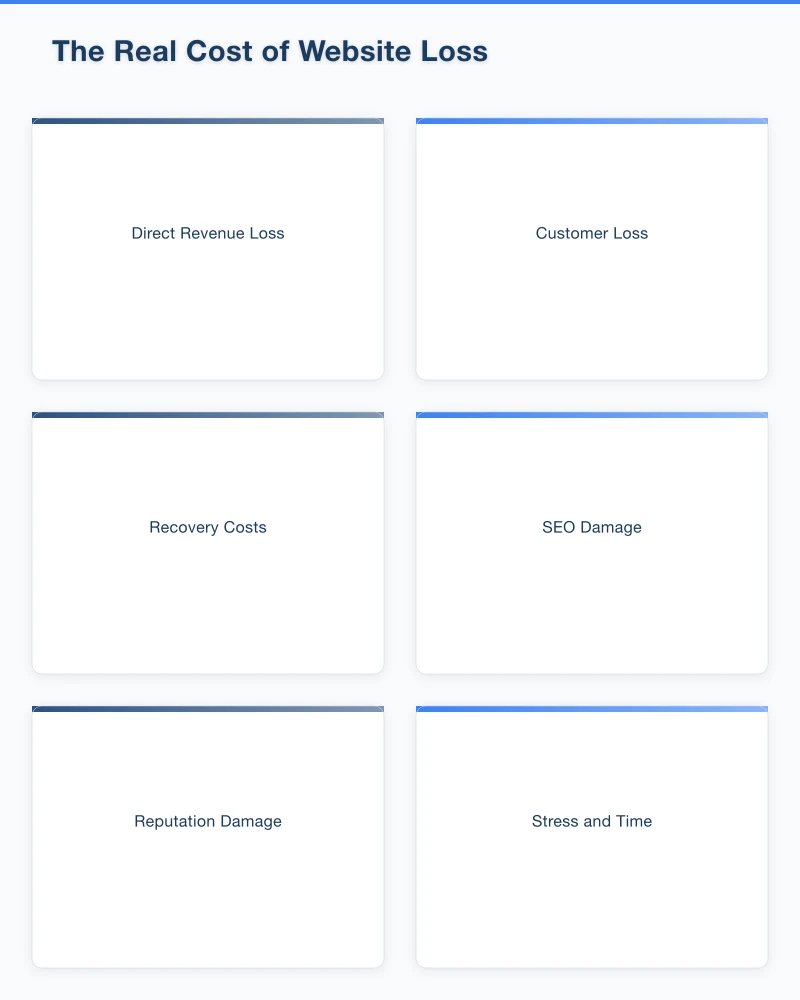
The Real Cost of Website Loss
Financial Impact
When your website goes down, the costs multiply quickly:
Direct Revenue Loss For e-commerce businesses, every hour of downtime means lost sales. A Castle Hill retailer doing $500/day in online sales loses that revenue entirely during an outage.
Customer Loss Customers who arrive at a broken or missing website often don’t come back. They’ve already moved to a competitor by the time you’re restored.
Recovery Costs Rebuilding a website from scratch costs significant money. Depending on complexity, you’re looking at $2,000 to $15,000+ for a professional rebuild.
SEO Damage If your site is down for extended periods, Google drops your rankings. Recovering that visibility can take months.
Non-Financial Costs
Reputation Damage Customers question your reliability when your website has problems. “If they can’t keep their website running, how reliable is their actual service?”
Stress and Time Dealing with a website disaster consumes enormous mental energy and time–resources that should go toward running your business.
Lost Data Beyond the website itself, you might lose customer enquiries, order history, email subscriber lists, and years of content.
Why Websites Fail: The Common Causes
Understanding what can go wrong helps you protect against it.
Hacking and Malware
This is the most common cause of serious website damage. 43% of cyber attacks target small businesses, and websites are a frequent entry point.
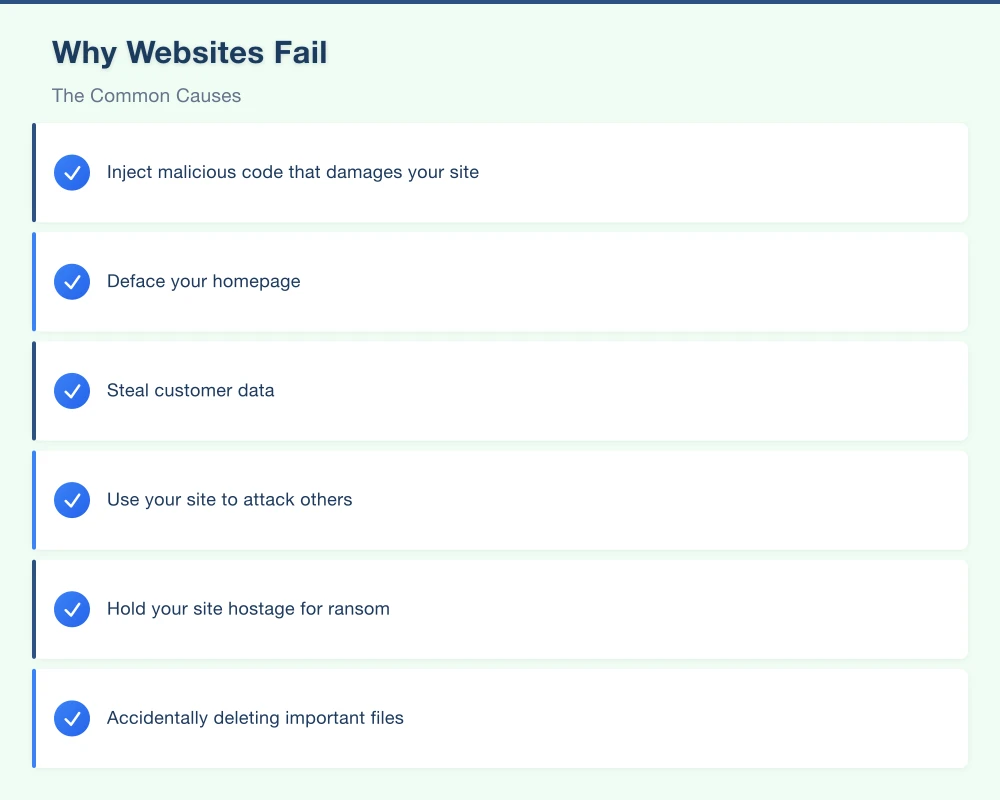
Attackers might:
- Inject malicious code that damages your site
- Deface your homepage
- Steal customer data
- Use your site to attack others
- Hold your site hostage for ransom
WordPress sites are particularly targeted because of their popularity. An outdated plugin or theme can provide the vulnerability hackers need.
Server and Hosting Failures
Hosting companies have hardware failures, data center issues, and sometimes go out of business entirely. While reputable hosts have redundancy, problems still occur.
We’ve seen cases where hosting companies lost customer data due to failed backup systems–systems customers assumed were working.
Human Error
Accidents happen:
- Accidentally deleting important files
- Breaking the site during updates
- Installing incompatible plugins
- Editing the wrong file
Without backups, a simple mistake can become a major disaster.
Update Problems
WordPress, plugins, themes, and other software require regular updates. But updates sometimes conflict with each other or introduce bugs.
A plugin update might break your site. A WordPress core update might conflict with your theme. These issues are usually fixable if you have a backup to restore from.
Domain and SSL Issues
Expired domain registrations or SSL certificates can make your site inaccessible or display scary security warnings. While not data loss, the result is effectively the same–customers can’t reach you.
The Backup Fundamentals
A proper backup strategy has multiple layers.
What to Back Up
Your website has two main components:
Files
- WordPress core files (or your platform’s equivalent)
- Theme files
- Plugin files
- Uploaded images and media
- Custom code and scripts
Database
- All your content (pages, posts, products)
- Settings and configurations
- User accounts
- Customer data
- Order history
Both must be backed up together. Files without the database give you an empty website. Database without files gives you a broken one.
Backup Frequency
How often to back up depends on how often your site changes:
Daily Backups (recommended for most business sites)
- Any site with customer interactions (forms, orders, bookings)
- E-commerce stores
- Blogs with regular new content
Weekly Backups (minimum for static sites)
- Brochure-style websites with infrequent updates
- Sites where you control all changes
Before Major Changes (always)
- Before any update (WordPress, plugins, themes)
- Before adding new features
- Before making design changes
Backup Storage Locations
The most important rule: never store backups only on your hosting server.
If the server fails or is compromised, you lose both your live site AND your backups.
Store backups in multiple locations:
- Cloud storage (Google Drive, Dropbox, Amazon S3)
- Different hosting server
- Local computer or external drive
- Backup service provider
Having backups in at least two physically separate locations protects against almost any disaster.
Setting Up Automatic Backups
WordPress Backup Solutions
UpdraftPlus (Recommended for Most)
- Free version available, premium from $70/year
- Automatic scheduled backups
- Stores to multiple cloud destinations
- Easy one-click restoration
Setup Steps:
- Install UpdraftPlus from WordPress plugins
- Go to Settings > UpdraftPlus Backups
- Click Settings tab
- Set backup schedule (daily for database, weekly for files)
- Choose remote storage (Google Drive or Dropbox are easy)
- Connect to your cloud storage
- Save changes
- Run your first backup manually to test
BlogVault
- Dedicated WordPress backup service
- Incremental backups (faster, less server load)
- Staging sites included
- From $89/year
VaultPress (Jetpack Backup)
- Real-time or daily backups
- Quick restore options
- Integrated with WordPress.com
- From $47/year
Hosting-Based Backups
Many hosting providers offer automated backups:
What to Check:
- How often are backups taken?
- How long are backups retained?
- Can YOU restore a backup, or must you contact support?
- Where are backups stored?
- What’s included (files only, or files and database)?
Important: Don’t rely solely on hosting backups. They’re a good first layer but shouldn’t be your only protection.
Testing Your Backups
A backup that doesn’t work is worthless. Test regularly:
Monthly:
- Verify backups are running (check dates)
- Download a backup and check file sizes look right
- Review backup logs for errors
Quarterly:
- Perform a test restore to a staging site
- Verify the restored site functions correctly
- Check that recent content and data is included
Security Protection Measures
Backups let you recover. Security measures prevent problems in the first place.
Keep Everything Updated
Outdated software is the number one cause of WordPress hacks.
Update Regularly:
- WordPress core (within a week of releases)
- All plugins (within days of releases)
- Themes (within days of releases)
- PHP version (as recommended by your host)
Before Updating:
- Ensure you have a recent backup
- Check plugin reviews for update problems
- Update one thing at a time
- Test your site after each update
Use Strong Passwords
Every account connected to your website needs a strong, unique password:
- WordPress admin accounts
- Hosting control panel
- FTP/SFTP access
- Database access
- Email accounts connected to your domain
Use a password manager (LastPass, 1Password, Bitwarden) to generate and store complex passwords.
Install Security Plugin
For WordPress, install a security plugin:
Wordfence (Recommended)
- Free version available
- Firewall protection
- Malware scanning
- Login security
- Real-time threat protection
Setup Basics:
- Install Wordfence from WordPress plugins
- Complete the installation wizard
- Enable the firewall
- Set up login security (limit login attempts)
- Schedule regular security scans
Sucuri Security
- Website monitoring
- Malware scanning
- Hardening options
- Free and premium versions
Enable Two-Factor Authentication
Add 2FA to your WordPress admin login. Even if someone gets your password, they can’t access your site without the second factor.
Wordfence and other security plugins include 2FA options. Google Authenticator is a free app that provides the second factor.
Limit Login Access
Reduce attack surface:
- Change the default “admin” username
- Use a unique username (not your name or business name)
- Limit login attempts (3-5 before lockout)
- Consider hiding the login page (/wp-admin)
SSL and Domain Protection
SSL Certificate
Your site must have an active SSL certificate (the padlock in browsers).
Check Your SSL:
- Is it valid and not expired?
- When does it expire?
- Set a calendar reminder to renew
Most hosts offer free SSL through Let’s Encrypt. Paid certificates from providers like Sectigo offer additional insurance and features.
Domain Registration
Your domain is your online identity. Protect it:
Set Up Auto-Renewal Enable automatic renewal to prevent accidental expiration.
Use Domain Lock Enable registrar lock to prevent unauthorized transfers.
Update Contact Information Ensure your email and contact details are current for renewal notices.
Consider Multi-Year Registration Register for 2-5 years to reduce renewal risk.
Creating a Disaster Recovery Plan
If something goes wrong, you need a plan.
Document Everything
Create a document (stored outside your website) containing:
Access Information
- Hosting provider and login
- Domain registrar and login
- WordPress admin URL and login
- Backup service login
- SSL provider login
Technical Details
- PHP version
- WordPress version
- List of active plugins
- Theme name and version
- Customizations made
Key Contacts
- Hosting support number
- Web developer contact
- Emergency IT contact
Recovery Steps
Write out the steps to restore your site:
- Access your backup service
- Download the most recent backup
- Log into hosting control panel
- Restore files to server
- Restore database
- Verify site functionality
- Check all pages and forms
- Test transactions (if applicable)
Having documented steps saves crucial time during a crisis.
Know Your Resources
Identify who can help if needed:
- Does your hosting provider offer restoration assistance?
- Do you have a web developer relationship for emergencies?
- What are their response times and emergency fees?
Year-End Backup Checklist
Before we close out 2025, complete this checklist:
Backup Verification
- Confirm automatic backups are running
- Download and verify a complete backup
- Test restoration on a staging site
- Confirm backups are stored off-site
Security Audit
- Update WordPress to latest version
- Update all plugins
- Update theme
- Run security scan for malware
- Review and remove unused plugins
- Check all passwords are strong and unique
- Verify 2FA is enabled
Domain and SSL
- Check domain expiry date
- Confirm auto-renewal is enabled
- Check SSL expiry date
- Confirm SSL auto-renewal
Documentation
- Update access credentials document
- Verify emergency contact list is current
- Store documentation in multiple safe locations
Protect Your Investment
Your website represents significant investment–in money, time, and your business’s reputation. Protection through proper backups and security is some of the cheapest insurance you can buy.
Don’t wait for a disaster to reveal the gaps in your protection. Take action this week:
- Verify your current backup situation
- Install or configure proper backup software
- Test that your backups actually work
- Update all software to current versions
- Enable security protection
Twenty minutes of setup now could save you thousands of dollars and countless hours of stress later.
Need help securing and protecting your website? Cosmos Web Technologies offers website maintenance and security packages for Western Sydney businesses. Contact us for a security audit and backup setup.
Your website’s performance depends on what’s behind it. Cloud Geeks provides the managed hosting, cloud, and IT support that keeps Australian SMBs online and secure.
Ash Ganda covers how Australian SMBs are using AI, automation, and digital strategy to grow without scaling costs proportionally.
If your business is also planning a customer-facing iOS or Android app — Awesome Apps builds cross-platform mobile apps for Australian SMBs.
Part of the Ganda Tech Services family, Cosmos Web Tech delivers specialist web design and digital marketing for Australian small and medium businesses.