
Why Forms Matter More Than You Think
Your website might look fantastic. Your content might be perfect. But if your contact form is frustrating, confusing, or broken, none of that matters.
For Western Sydney businesses, forms are often where leads become customers. A visitor decides they’re interested, goes to contact you, and then… abandons the form halfway through. You never know they existed.
Research consistently shows that form optimisation can increase conversions by 25-50%. That’s the same traffic, the same marketing spend, but significantly more enquiries.
This guide covers how to build forms people actually complete, including the often-overlooked challenge of document uploads.
The Psychology of Form Abandonment
People abandon forms for predictable reasons:
Too Long: Every field you add costs you submissions. Studies suggest conversion drops about 4% for each additional field.
Asking Too Much Too Soon: Requesting detailed information before trust is established feels invasive.
Unclear Benefit: If visitors don’t understand what happens after submission, they hesitate.
Technical Problems: Forms that don’t work on mobile, throw errors, or reload unexpectedly lose visitors.
Privacy Concerns: Especially for sensitive information, people worry about how their data will be used.
Interrupted Process: Long forms that can’t be saved mid-way frustrate visitors who get distracted.
Understanding these reasons helps you design forms that work with human behaviour, not against it.
Form Design Fundamentals
Before getting into advanced features like document uploads, nail the basics:
Only Ask What You Need
For an initial contact form, you probably need:
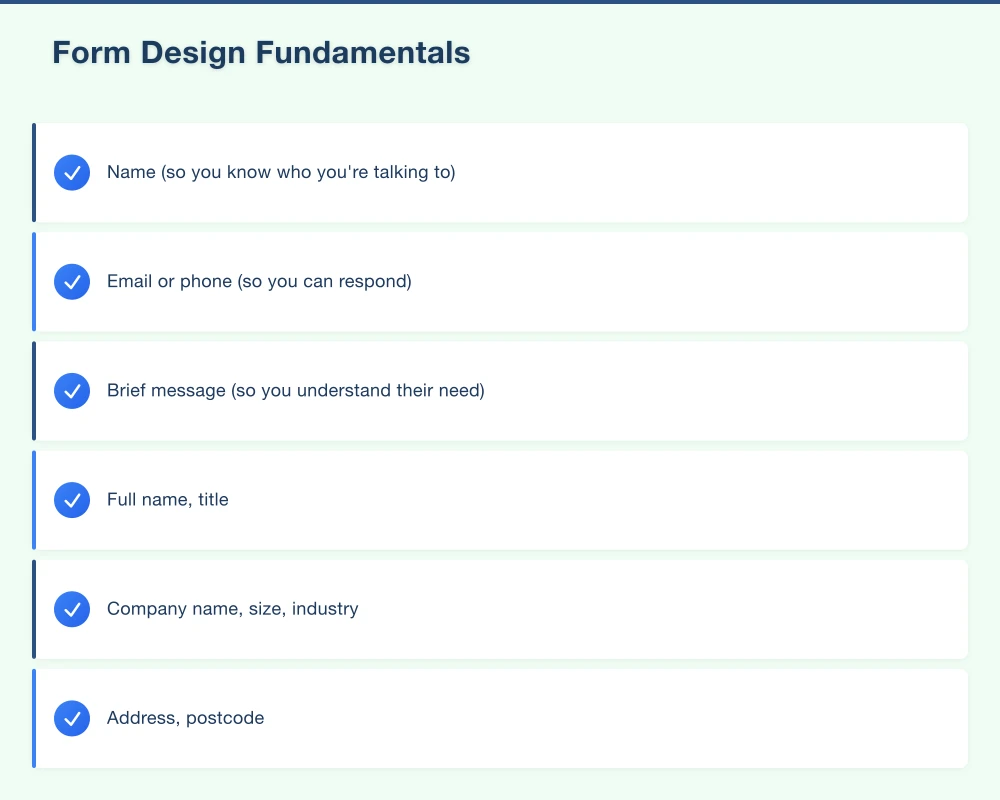
- Name (so you know who you’re talking to)
- Email or phone (so you can respond)
- Brief message (so you understand their need)
That’s it. Three fields. You can gather more information once you’re actually talking to them.
Compare to forms that ask for:
- Full name, title
- Company name, size, industry
- Address, postcode
- Phone, alternative phone
- Preferred contact method
- How did you hear about us
- Detailed project description
Every unnecessary field loses you leads.
Write Clear Labels
“Full Name” beats “Name.” “Work Email Address” beats “Email.” Make it obvious what you’re asking for.
Avoid jargon. “ABN” might need explanation for some audiences. “Your Australian Business Number (if applicable)” is clearer.
Use Appropriate Field Types
- Phone numbers: Use
telinput type (shows numeric keyboard on mobile) - Email: Use
emailinput type (gets validated) - Dates: Use date pickers, not free text
- Multiple choice: Use dropdowns or radio buttons, not free text
These small choices reduce errors and make forms easier to complete on any device.
Show Progress on Long Forms
If a form must be long, break it into steps with a progress indicator:
Step 1 of 3: Your Details Step 2 of 3: Your Requirements Step 3 of 3: Additional Information
People who see progress are more likely to complete forms. They know the end is in sight.
Provide Helpful Error Messages
Bad: “Invalid input” Good: “Please enter a valid Australian phone number (e.g., 02 9123 4567)”
Bad: “Required field” Good: “Please enter your email so we can respond to you”
Specific, helpful errors turn frustrated visitors into completed submissions.
Confirm Submission Clearly
After submission, don’t just show a generic “Thanks.” Tell them:
- What happens next
- When to expect a response
- What to do if they don’t hear back
“Thanks for your enquiry! We’ll call you within 24 hours. If it’s urgent, call us on 02 9XXX XXXX.”
Document Upload Best Practices
Many businesses need more than text fields. Accountants need tax documents. Builders need plans. Insurance brokers need photos. Here’s how to handle file uploads properly:
Make Upload Purpose Clear
Don’t just add a file upload field. Explain what you need:
“Please upload your most recent tax return (PDF preferred, max 10MB)”
“Photos of the damage (JPEG or PNG, up to 5 images, max 5MB each)”
Clear instructions mean you get useful files instead of random attachments.
Specify Accepted File Types
Configure your form to only accept appropriate files:
- Documents: PDF, DOC, DOCX
- Images: JPG, PNG, WEBP
- Spreadsheets: XLS, XLSX, CSV
Reject unexpected file types immediately with a clear message: “Sorry, we can only accept PDF files. Please save your document as PDF and try again.”
Set Sensible Size Limits
Balance between usability and security:
- Too small: Users can’t upload real documents
- Too large: Opens you to abuse and storage costs
For most business purposes:
- Individual files: 10-25MB maximum
- Total upload: 50MB maximum
Show remaining capacity: “2 of 5 files uploaded (23MB of 50MB used)”
Provide Upload Progress
Nothing is worse than clicking “Submit” and not knowing if anything is happening. Show:
- Upload percentage for each file
- Overall progress indicator
- Clear “Upload complete” confirmation
This is especially important on Australian internet connections, which can be slower for uploads.
Allow Multiple Files
If you need multiple documents, let users upload several at once:
“Upload documents (drag and drop multiple files, or click to browse)”
Don’t force users to select one file at a time. It’s frustrating and time-consuming.
Preview Before Submit
Let users verify what they’ve uploaded:
- Show thumbnails for images
- Show filename and size for documents
- Include a “Remove” option for each file
Mistakes happen. Let people fix them before submitting.
Handle Mobile Uploads
Many users will upload from phones. Make sure your upload works with:
- Phone camera (take photo and upload directly)
- Photo library
- Files stored on device
- Cloud storage (Google Drive, iCloud, Dropbox)
Test on actual phones. Desktop-only uploads lose mobile visitors.
Security for File Uploads
File uploads introduce security risks. Protect yourself and your users:
Validate File Types Server-Side
Don’t trust browser validation alone. Check file types on the server too. Someone could rename malware.exe to document.pdf.
Check the actual file content, not just the extension.
Scan for Malware
Use virus scanning on uploaded files before storing them. Services like VirusTotal or ClamAV can integrate with your server.
Isolate Uploaded Files
Don’t store uploads in publicly accessible directories. Keep them separate from your website files, with restricted access.
Limit Who Can Upload
Consider whether anonymous uploads are necessary. Requiring an email address (and perhaps verification) reduces abuse.
Delete Old Files
Set retention policies. Do you really need customer files from five years ago? Regular cleanup reduces storage costs and liability.
Industry-Specific Form Examples
Here’s what works for different Western Sydney businesses:
Tradesperson Quote Request
Required Fields:
- Name
- Phone
- Postcode
- Type of work (dropdown)
- Brief description
Optional Upload:
- Photos of the area/issue (images only, max 5)
Why It Works: Quick to complete, gets enough info to provide a quote, photos help assess jobs remotely.
Accountant Client Onboarding
Step 1 - Contact Info:
- Full name
- Phone
- Preferred contact method
Step 2 - Business Details:
- Business name (optional)
- ABN (optional)
- Type of service needed (dropdown)
Step 3 - Documents (optional):
- Previous tax returns
- Financial statements
- ID verification documents
Why It Works: Collects essentials first, detailed info later. Document upload is optional - they can be provided later.
Insurance Claim Form
Required Fields:
- Policy number
- Name
- Contact details
- Date of incident
- Description
Required Upload:
- Photos of damage (minimum 2, maximum 10)
Optional Upload:
- Police report
- Receipts/valuations
Why It Works: Gets all necessary documentation upfront, reducing back-and-forth. Clear requirements prevent incomplete submissions.
Real Estate Rental Application
Step 1 - Personal Details:
- Name, DOB
- Contact information
- Current address
Step 2 - Employment:
- Employer name
- Employment type
- Income range (dropdown)
Step 3 - References:
- Previous landlord contact
- Personal reference
Step 4 - Documents:
- Photo ID (required)
- Proof of income (required)
- Rental history (optional)
Why It Works: Multi-step reduces overwhelm. Required documents are clearly marked. Progress indicator maintains momentum.
Form Tools and Platforms
Different tools suit different needs:
WordPress Plugins
Gravity Forms ($59/year): Powerful, handles complex forms including file uploads. Popular for good reason.
WPForms (Free-$299/year): User-friendly. Pro version handles file uploads well.
Formidable Forms (Free-$199/year): Good for calculated fields and multi-step forms.
Standalone Form Builders
Typeform (Free-$83/month): Beautiful, conversational forms. Good for surveys and simple enquiries.
JotForm (Free-$99/month): Extensive templates, good file handling. Popular with Australian businesses.
Paperform ($24-$159/month): Australian-made. Clean design, solid functionality.
Custom Development
For complex needs or high-volume processing, custom forms may be worthwhile. More control, better integration, no ongoing subscription.
Measuring Form Performance
Track these metrics to improve over time:
Conversion Rate
Visitors who see the form vs. those who complete it. If 1,000 people view your contact page and 50 submit enquiries, that’s 5%.
Abandonment Rate
How many start filling out the form but don’t finish? High abandonment suggests problems with form length or complexity.
Field Completion Time
Which fields take longest? If people spend two minutes on a single field, it might be confusing or unnecessary.
Error Rate
Which fields cause the most errors? Frequent errors suggest unclear instructions or validation issues.
Form Load Time
Forms that take forever to load lose visitors. Especially important on slower connections.
Testing and Improving Forms
Don’t guess - test:
A/B Testing
Try two versions of a form and see which performs better. Test:
- Number of fields
- Field order
- Button text
- Form placement on page
User Testing
Watch real people use your form. You’ll spot confusion and frustration immediately.
Regular Reviews
Check form analytics monthly. Look for:
- Sudden drops in conversion (something broke?)
- Consistent abandonment at specific fields (problem field?)
- Mobile vs. desktop differences (mobile experience issues?)
Quick Wins You Can Implement Today
If you’re short on time, start here:
- Remove unnecessary fields: Every field you cut improves conversion
- Fix mobile experience: Test on an actual phone
- Add a privacy statement: “We’ll never share your details”
- Improve confirmation: Tell people what happens next
- Check form speed: Make sure it loads quickly
- Verify error messages: Make them helpful, not technical
Need Help With Your Forms?
At Cosmos Web Tech, we build forms that people actually complete. For Western Sydney businesses, we:
- Audit existing forms for conversion problems
- Design new forms with best practices built in
- Implement secure document upload functionality
- Set up tracking to measure performance
- Test across devices and connections
Your forms are often the last step before a visitor becomes a lead. A form that converts 3% instead of 2% - that’s 50% more enquiries from the same traffic.
Get in touch for a free form audit. We’ll review your current forms and show you exactly where you’re losing potential customers.
Every form submission is a potential customer. Let’s make sure you’re not leaving money on the table.
Your website’s performance depends on what’s behind it. Cloud Geeks provides the managed hosting, cloud, and IT support that keeps Australian SMBs online and secure.
Ash Ganda covers how Australian SMBs are using AI, automation, and digital strategy to grow without scaling costs proportionally.
If your business is also planning a customer-facing iOS or Android app — Awesome Apps builds cross-platform mobile apps for Australian SMBs.
Part of the Ganda Tech Services family, Cosmos Web Tech delivers specialist web design and digital marketing for Australian small and medium businesses.