Website Security Basics for Small Business Owners
You might think your small business website is not a target for hackers. After all, why would anyone bother with a local business when there are banks and corporations to attack?
The reality is that small business websites are attacked precisely because they often have weaker security. Automated bots scan millions of websites looking for vulnerabilities, and they do not discriminate based on business size. A hacked website can damage your reputation, cost you customers, and even expose you to legal liability if customer data is compromised.
The good news is that basic website security is not complicated or expensive. Here are the fundamentals every small business owner should have in place.
Why Website Security Matters
Customer Trust
If a customer visits your website and sees a browser warning saying “Not Secure” or if your site has been defaced by hackers, that trust is gone instantly. And it is very hard to rebuild.
Google Rankings
Google considers security as a ranking factor. Sites without SSL certificates (HTTPS) are flagged as “Not Secure” in Chrome, and security issues can negatively impact your search rankings.
Legal Obligations
Under Australian privacy law, if your business collects personal information (names, email addresses, phone numbers), you have obligations to protect that data. A security breach can have legal and financial consequences.
Business Continuity
A hacked website might be taken offline, redirected to a malicious site, or filled with spam content. The time and cost to recover can be significant, especially if you do not have backups.
Essential Security Measures
1. Install an SSL Certificate
An SSL certificate encrypts the connection between your website and your visitors’ browsers. It is what puts the padlock icon in the browser address bar and changes your URL from http:// to https://.
Why it matters:
- Encrypts data transmitted between your site and visitors (especially important for forms, login pages, and payment information)
- Chrome and other browsers warn visitors when a site does not have SSL
- Google uses HTTPS as a ranking signal
How to get it:
- Many hosting providers now include free SSL certificates (often through Let’s Encrypt)
- If yours does not, ask your host or developer to install one
- There are also paid SSL certificates for businesses that need extended validation
If your site still shows “Not Secure” in the browser, fixing this should be your immediate priority.
2. Keep Everything Updated
If your website runs on WordPress or another CMS, keeping your software updated is one of the most critical security measures.
What to update:
- WordPress core software
- All themes (including inactive ones – or better yet, delete unused themes)
- All plugins (and delete any you are not using)
Why updates matter: Security vulnerabilities are discovered regularly in WordPress, themes, and plugins. Developers release updates to fix these vulnerabilities. If you do not update, your site remains exposed to known security holes.
How to stay on top of updates:
- Enable automatic updates for minor WordPress releases
- Check for plugin and theme updates at least weekly
- Set a reminder to log in and update regularly
- Consider a maintenance plan that handles updates for you
3. Use Strong Passwords
This sounds obvious, but weak passwords are still one of the most common security vulnerabilities.
Password rules:
- Use passwords that are at least 12 characters long
- Include a mix of uppercase, lowercase, numbers, and symbols
- Never reuse passwords across different accounts
- Use a password manager like LastPass, 1Password, or Bitwarden to generate and store strong passwords
For WordPress users:
- Change the default admin username (never use “admin”)
- Limit login attempts to prevent brute force attacks (plugins like Limit Login Attempts Reloaded help with this)
- Consider two-factor authentication for your login
4. Back Up Your Website Regularly
If the worst happens and your site is hacked, corrupted, or accidentally broken, a recent backup means you can restore it quickly.
Backup best practices:
- Back up at least weekly (daily if your site changes frequently)
- Store backups in a separate location from your hosting (cloud storage, external drive)
- Keep multiple backup copies (not just the most recent one)
- Test your backups occasionally to make sure they actually work
Backup tools for WordPress:
- UpdraftPlus (free and premium versions)
- BackWPup
- VaultPress (from Jetpack)
- Many hosting providers also offer automated backups
5. Use a Web Application Firewall
A web application firewall (WAF) monitors and filters incoming traffic to your website, blocking malicious requests before they reach your site.
Options:
- Cloudflare: Offers a free plan with basic WAF protection, plus DNS and CDN benefits
- Sucuri: Dedicated website security service with firewall, malware scanning, and cleanup services
- Wordfence: A popular WordPress security plugin with firewall and malware scanning
Even a free Cloudflare account provides meaningful protection for a small business website.
6. Limit User Access
Only give people the access they need. If you have multiple people who can log into your website:
- Use separate accounts for each person (never share login credentials)
- Assign appropriate roles (not everyone needs full administrator access)
- Remove accounts for people who no longer need access
- Review access periodically
7. Secure Your Hosting
Your hosting environment is the foundation of your website security.
What to look for in a host:
- Regular server-level security updates
- Firewall protection at the server level
- Malware scanning
- Automatic daily backups
- Support for the latest PHP versions (if using WordPress)
- Good reputation for security
Cheap hosting often means shared security. If your hosting provider does not take security seriously, your website is at risk regardless of what you do on your end.
8. Monitor for Malware
Even with good security practices, monitoring your website for malware is important. Malware can be injected through vulnerabilities and may not be immediately obvious.
Monitoring options:
- Google Search Console will notify you if Google detects malware on your site
- Sucuri SiteCheck offers free online scanning
- Wordfence (for WordPress) scans your site for known malware
- Your hosting provider may offer malware scanning
If malware is detected, act quickly. Remove it, identify how it got in, fix the vulnerability, and restore from a clean backup if necessary.
9. Protect Your Forms
Contact forms, login pages, and any other forms on your website can be targeted by bots and attackers.
Form protection:
- Use CAPTCHA or reCAPTCHA on all forms to block bots
- Validate and sanitise all form inputs
- Use anti-spam plugins if your form plugin supports them
- Monitor form submissions for suspicious activity
10. Use HTTPS for All Pages
Make sure your entire website uses HTTPS, not just specific pages. Some older sites only use HTTPS on payment or login pages while serving the rest over HTTP. Every page should be secure.
Set up a redirect so that anyone accessing your site via HTTP is automatically redirected to HTTPS.
What to Do If Your Site Is Hacked
If you suspect your site has been compromised:
- Do not panic, but act quickly
- Take your site offline temporarily if possible to prevent further damage
- Contact your hosting provider – they may be able to help identify and resolve the issue
- Restore from a clean backup if you have one
- Change all passwords – hosting, CMS, database, FTP, and email
- Scan for malware and remove any malicious code
- Update everything – WordPress core, themes, and plugins
- Identify how the breach happened and fix the vulnerability
- Submit your site for review in Google Search Console if Google flagged it
- Consider professional help if the situation is complex
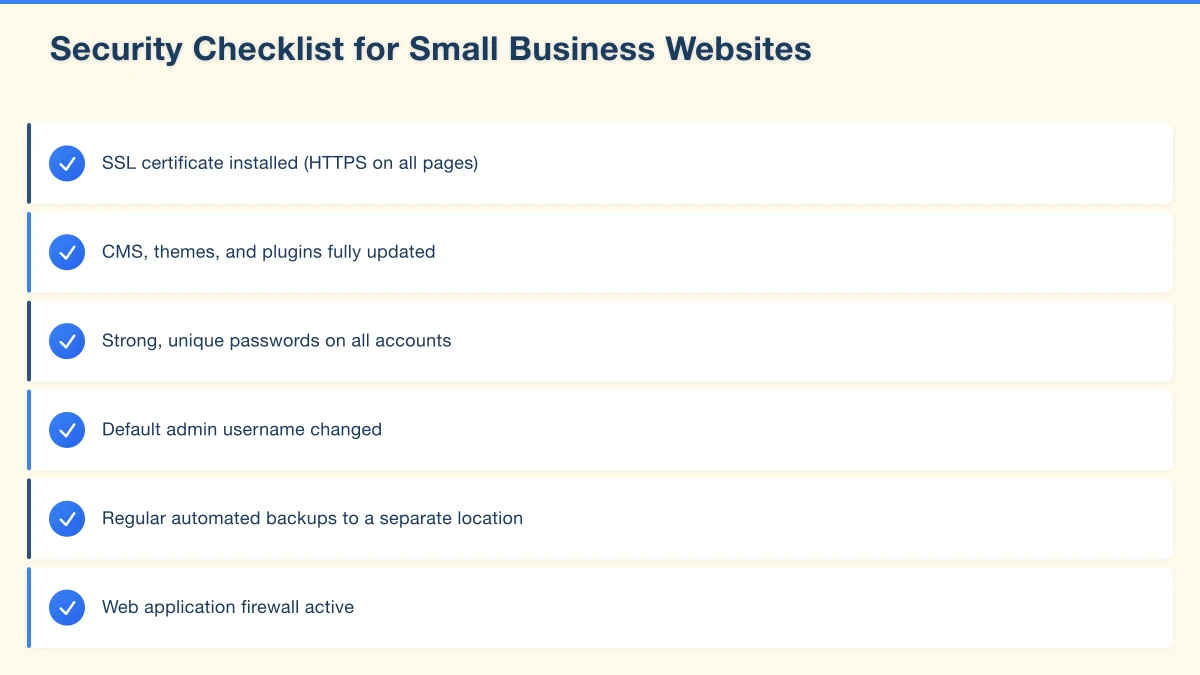
Security Checklist for Small Business Websites
Use this checklist to assess your current security:
-
SSL certificate installed (HTTPS on all pages)
-
CMS, themes, and plugins fully updated
-
Strong, unique passwords on all accounts
-
Default admin username changed
-
Regular automated backups to a separate location
-
Web application firewall active
-
Unused themes and plugins deleted
-
User access reviewed and limited to necessary roles
-
Contact forms protected with CAPTCHA
-
Monitoring for malware in place
-
Hosting provider takes security seriously
Invest in Security Now
Website security is not glamorous, but it is essential. A security incident can cost you far more in time, money, and reputation than the effort it takes to implement these basics.
For small businesses in Western Sydney, your website is often the first point of contact with potential customers. Keeping it secure protects not just your data but your business reputation.
If you are not sure where your website security stands, we can help. Our team reviews and secures websites for local businesses. A quick security audit can identify any gaps and give you peace of mind.
Do not wait for a problem to happen. Take action today.
Your website’s performance depends on what’s behind it. Cloud Geeks provides the managed hosting, cloud, and IT support that keeps Australian SMBs online and secure.
Ash Ganda covers how Australian SMBs are using AI, automation, and digital strategy to grow without scaling costs proportionally.
If your business is also planning a customer-facing iOS or Android app — Awesome Apps builds cross-platform mobile apps for Australian SMBs.
Part of the Ganda Tech Services family, Cosmos Web Tech delivers specialist web design and digital marketing for Australian small and medium businesses.