
Introduction
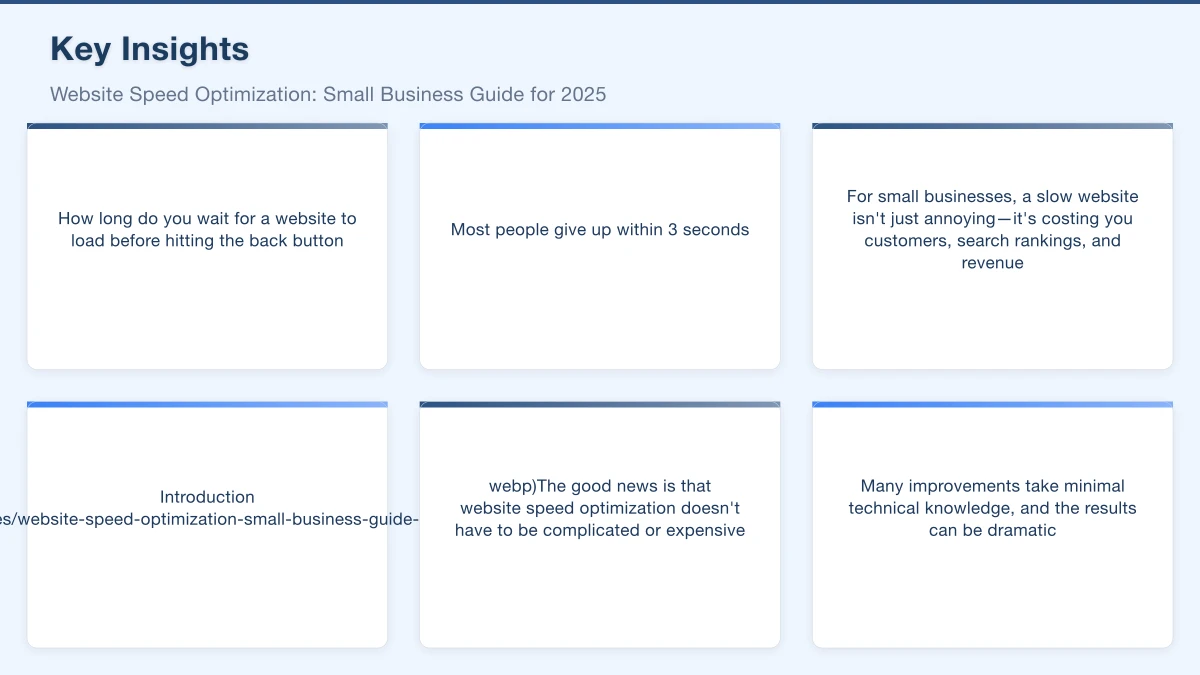
You click a link to a website and wait. And wait. After three seconds, you hit the back button and try the next result. We’ve all done it.
For small business owners, a slow website isn’t just annoying for visitors. It costs you customers and hurts your Google rankings. The good news is that most speed issues can be fixed without being a technical expert.
This guide explains why website speed matters and provides practical steps to make your site faster.
Why Website Speed Matters
Users Won’t Wait
Research consistently shows that users abandon slow websites:
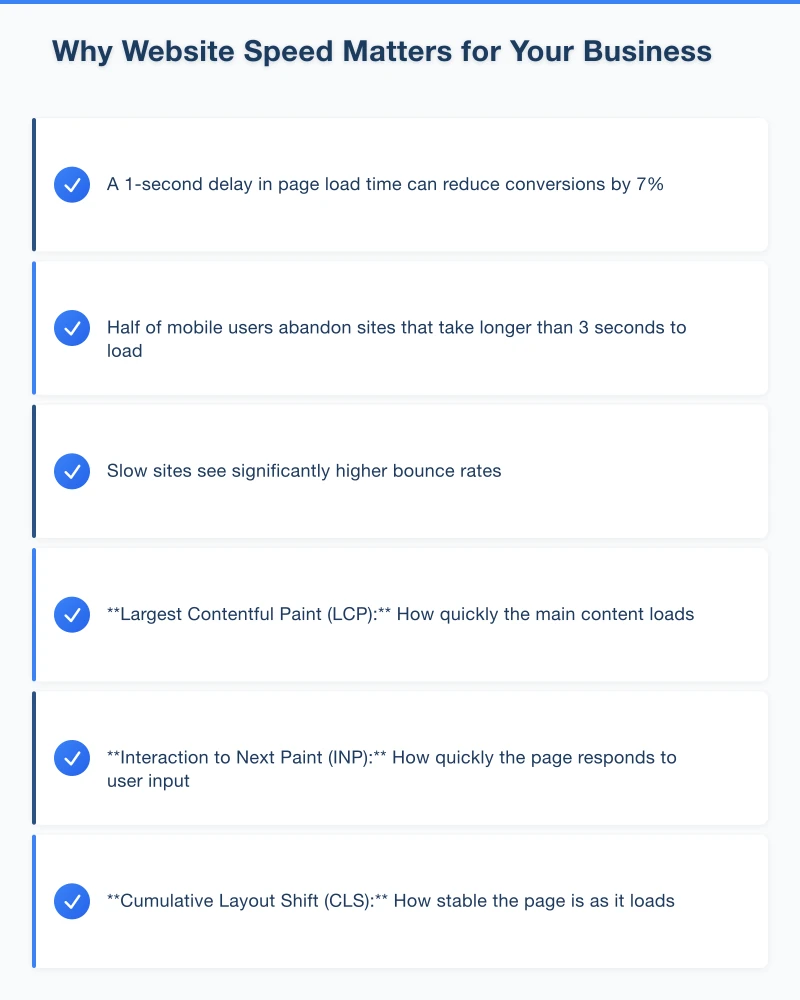
- 40% of visitors abandon sites that take more than 3 seconds to load
- A 1-second delay can reduce conversions by 7%
- 79% of online shoppers who experience a slow site say they won’t return
For a Western Sydney business relying on their website to generate enquiries, every second of delay means lost opportunities.
Google Uses Speed as a Ranking Factor
Google wants to show users websites that provide a good experience. Slow sites provide a poor experience. Therefore, page speed affects your search rankings.
While speed is one of many ranking factors, it’s become increasingly important. Google has explicitly stated that page speed impacts rankings, particularly for mobile searches.
Speed Affects Every Metric
Beyond rankings, speed impacts:
- Bounce rate: Slow sites have higher bounce rates
- Pages per visit: Fast sites encourage exploration
- Time on site: Users engage longer with fast sites
- Conversion rate: Speed directly impacts whether visitors take action
How Fast Should Your Website Be?
The 3-Second Rule
As a general benchmark, your website should load in under 3 seconds. Under 2 seconds is better. Under 1 second is excellent.
Different pages may load at different speeds. Your home page, being most visited, deserves the most attention.
Measuring Your Current Speed
Before improving, measure your starting point. Free tools to test your website speed:
Google PageSpeed Insights (developers.google.com/speed/pagespeed/insights)
- Enter your URL
- Get scores for mobile and desktop
- Receive specific improvement suggestions
GTmetrix (gtmetrix.com)
- Detailed performance analysis
- Waterfall charts showing load sequence
- Historical tracking
Pingdom (tools.pingdom.com)
- Test from different global locations
- Simple, clear results
Test your site and note your baseline scores. This helps you measure improvement as you make changes.
Common Causes of Slow Websites
Large Images
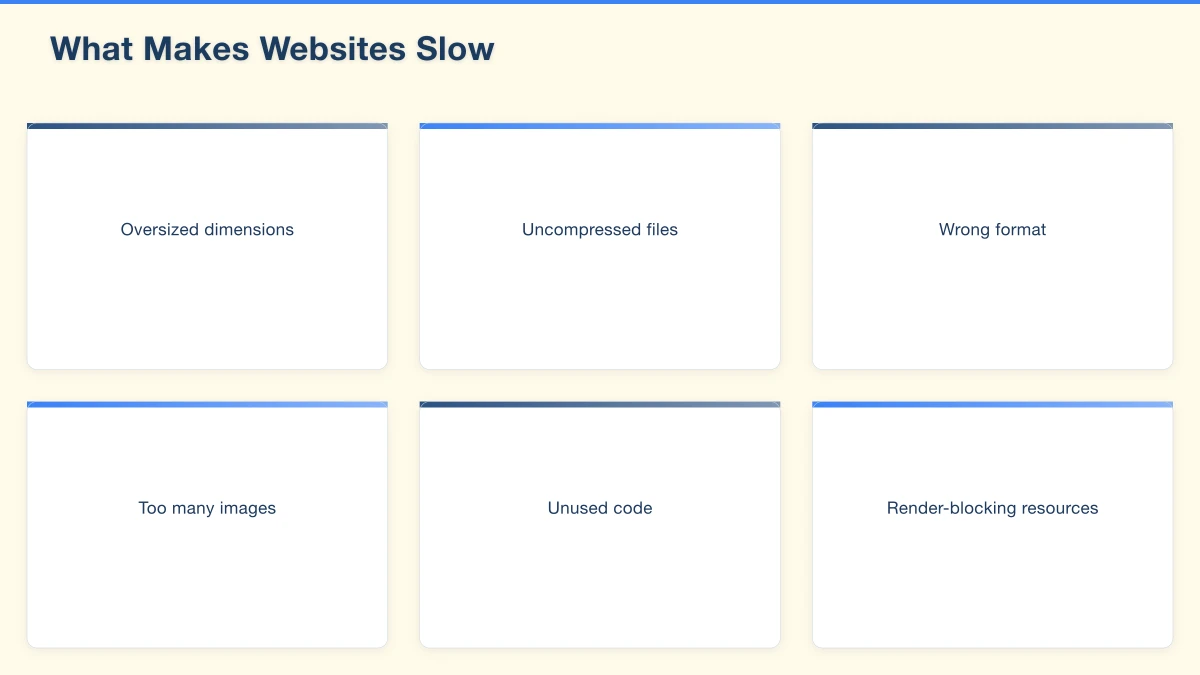
Images are often the biggest culprit for slow websites. A single unoptimised image can be several megabytes, when it should be kilobytes.
Signs of image problems:
- Photos uploaded directly from a camera or phone
- Images wider than 2000 pixels
- File sizes over 200KB for web images
Too Many Plugins or Add-ons
Every plugin adds code that must load. WordPress sites are particularly prone to plugin bloat. Some sites have 30+ plugins when they need 10.
Poor Hosting
Budget hosting often means shared resources with hundreds of other websites. During peak times, your site slows because it’s competing for server resources.
Unoptimised Code
Poorly coded themes, excess JavaScript, and unminified CSS all contribute to slow loading. This is harder for non-technical users to assess but can significantly impact speed.
No Caching
Without caching, your server builds each page from scratch for every visitor. Caching stores a ready-made version, dramatically speeding up delivery.
External Scripts
Third-party scripts for analytics, chat widgets, social media feeds, and advertising can slow your site, especially if they’re not optimised or if you have too many.
How to Speed Up Your Website
Step 1: Optimise Your Images
This single step often provides the biggest improvement.
Before uploading images:
-
Resize to actual display size: If your image displays at 800 pixels wide, don’t upload a 4000 pixel image
-
Compress images: Use tools like:
- TinyPNG (tinypng.com) - Free online compression
- ImageOptim (imageoptim.com) - Mac app
- ShortPixel (shortpixel.com) - WordPress plugin
-
Choose the right format:
- JPEG for photographs
- PNG for graphics with transparency
- WebP for next-generation compression (browser support is good in 2021)
Target file sizes:
- Hero images: Under 200KB
- Regular content images: Under 100KB
- Thumbnails: Under 30KB
For existing images:
WordPress users can install plugins like ShortPixel, Imagify, or Smush that automatically compress images already on your site.
Step 2: Enable Caching
Caching stores a ready-made version of your pages so they don’t need to be built from scratch each time.
For WordPress: Install a caching plugin:
- WP Super Cache (free, reliable)
- W3 Total Cache (free, more options)
- WP Rocket (paid, highly recommended)
For Wix/Squarespace: Caching is handled automatically by the platform.
For custom sites: Ask your developer about browser caching and server-side caching.
Step 3: Choose Better Hosting
If you’re on budget shared hosting, upgrading can significantly improve speed.
Good hosting options for small business:
Shared Hosting (Better Providers):
- SiteGround
- A2 Hosting
- Cloudways
Managed WordPress Hosting:
- WP Engine
- Kinsta
- Flywheel
Australian Hosting (for local speed):
- VentraIP
- Crucial
- Zuver
Expect to pay $10-30/month for hosting that won’t slow you down. It’s worth the investment.
Step 4: Minimise Plugins and Scripts
Audit your plugins:
- List all installed plugins
- Identify which are actually essential
- Deactivate and delete unnecessary plugins
- Look for lightweight alternatives to heavy plugins
Evaluate external scripts:
- Do you really need that chat widget?
- Is that social media feed essential?
- Can analytics be loaded asynchronously?
Every script you remove is one less thing slowing your site.
Step 5: Use a Content Delivery Network (CDN)
A CDN stores copies of your website on servers around the world. Visitors download from the nearest server, reducing load time.
CDN options:
- Cloudflare (free tier available)
- KeyCDN
- StackPath
Cloudflare’s free tier is excellent for small businesses. It provides CDN services, security features, and can significantly improve speed.
Step 6: Minify CSS and JavaScript
Minification removes unnecessary characters (spaces, comments) from code files, making them smaller.
For WordPress: Plugins like WP Rocket, Autoptimize, or W3 Total Cache include minification features.
For other platforms: Check if your platform offers built-in optimisation, or ask your developer.
Step 7: Reduce Server Response Time
Server response time (Time to First Byte or TTFB) measures how quickly your server responds to requests.
Improve server response time by:
- Upgrading hosting (most common solution)
- Using caching
- Optimising your database (for WordPress)
- Reducing plugin overhead
Speed Optimisation for WordPress
WordPress powers millions of sites but can become slow without attention. Key optimisations:
Essential WordPress Speed Plugins
Caching: WP Rocket (paid) or WP Super Cache (free)
Image optimisation: ShortPixel or Imagify
Database cleanup: WP-Optimize (removes post revisions, spam comments, etc.)
WordPress-Specific Tips
- Use a fast, lightweight theme: Avoid bloated multipurpose themes
- Limit post revisions: Add
define('WP_POST_REVISIONS', 5);to wp-config.php - Use lazy loading: Images only load when scrolled into view
- Disable unused features: Remove Gravatar, emojis if not needed
- Keep WordPress updated: Updates often include performance improvements
Speed Optimisation for Wix
Wix handles much of the technical optimisation, but you can still help:
- Optimise images before uploading
- Limit third-party apps from the Wix App Market
- Use fewer page elements and animations
- Keep galleries and sliders reasonable in size
- Avoid heavy video backgrounds
Mobile Speed Matters Most
More than half of web traffic is mobile. Mobile users often have slower connections, making speed even more critical.
Mobile-specific considerations:
- Test your site on actual mobile devices, not just desktop simulations
- Prioritise above-the-fold content loading first
- Consider Accelerated Mobile Pages (AMP) for blog content
- Ensure touch elements are appropriately sized
Google’s mobile-first indexing means your mobile speed is what matters for rankings.
Testing and Monitoring
Regular Testing
After making changes, test again to measure improvement. Compare your new scores to your baseline.
Speed optimisation isn’t a one-time task. Test monthly to catch any regressions.
Set Up Monitoring
Tools like GTmetrix and Pingdom offer free monitoring that alerts you if your site slows down.
Real User Monitoring
Google Analytics shows real user page load times: Behavior > Site Speed > Overview
This shows how actual visitors experience your site, which can differ from synthetic testing tools.
What to Prioritise
If you’re overwhelmed, focus on these high-impact items first:
- Optimise images - Biggest impact for least effort
- Enable caching - Significant improvement, easy to implement
- Upgrade hosting if necessary - May require investment but often essential
- Remove unnecessary plugins/scripts - Free and often impactful
These four items will solve most small business website speed issues.
When to Get Help
Consider professional help when:
- You’ve tried the basics and still have issues
- Your site has custom code that needs optimisation
- You’re uncomfortable making technical changes
- Your hosting provider can’t help
A web developer can identify issues you might miss and implement solutions properly.
The Business Case for Speed
Investing time in website speed pays off:
- Better user experience: Visitors stay longer and engage more
- Higher search rankings: Google rewards fast sites
- More conversions: Speed directly impacts whether visitors become customers
- Lower bounce rate: Fast sites keep visitors from leaving immediately
- Competitive advantage: While competitors have slow sites, yours excels
For a Western Sydney small business, a fast website can mean the difference between a visitor becoming a customer or going to a competitor.
Taking Action
Start today:
- Test your current speed using Google PageSpeed Insights
- Identify your biggest issues from the recommendations
- Address image optimisation first
- Enable caching if you haven’t already
- Retest and measure improvement
Small improvements add up. A site that loads in 5 seconds might load in 2 seconds after optimisation. That improvement will benefit every single visitor.
Need help speeding up your website? Cosmo Web Tech offers website performance optimisation for Western Sydney businesses. Contact us for a free speed audit.
Your website’s performance depends on what’s behind it. Cloud Geeks provides the managed hosting, cloud, and IT support that keeps Australian SMBs online and secure.
Ash Ganda covers how Australian SMBs are using AI, automation, and digital strategy to grow without scaling costs proportionally.
If your business is also planning a customer-facing iOS or Android app — Awesome Apps builds cross-platform mobile apps for Australian SMBs.
Part of the Ganda Tech Services family, Cosmos Web Tech delivers specialist web design and digital marketing for Australian small and medium businesses.