
Introduction
How long do you wait for a website to load before hitting the back button? Most people give up within 3 seconds. For small businesses, a slow website isn’t just annoying–it’s costing you customers, search rankings, and revenue.
The good news is that website speed optimization doesn’t have to be complicated or expensive. Many improvements take minimal technical knowledge, and the results can be dramatic. This guide covers what small business owners need to know about website speed in 2025, including how to test your site, what affects load time, and practical fixes you can implement.
Why Website Speed Matters for Your Business
Visitors Leave Slow Sites
When a page takes too long to load, visitors don’t wait–they leave. Studies consistently show that:
- A 1-second delay in page load time can reduce conversions by 7%
- Half of mobile users abandon sites that take longer than 3 seconds to load
- Slow sites see significantly higher bounce rates
For a small business, this means potential customers clicking away before they ever see your services, products, or contact information.
Google Prioritizes Fast Sites
Since 2021, Google has used page experience signals–including loading speed–as ranking factors. Slow websites rank lower in search results, meaning fewer people find your business in the first place.
Google’s Core Web Vitals measure three key aspects:
- Largest Contentful Paint (LCP): How quickly the main content loads
- Interaction to Next Paint (INP): How quickly the page responds to user input
- Cumulative Layout Shift (CLS): How stable the page is as it loads
Meeting these benchmarks helps your search visibility.
Mobile Performance is Critical
For most small businesses, over half of website visitors are on mobile devices. Mobile networks and older phones make speed even more critical–what loads acceptably on your office computer might crawl on a customer’s phone.
Testing Your Website Speed
Before making changes, establish your baseline with these free tools:
Google PageSpeed Insights
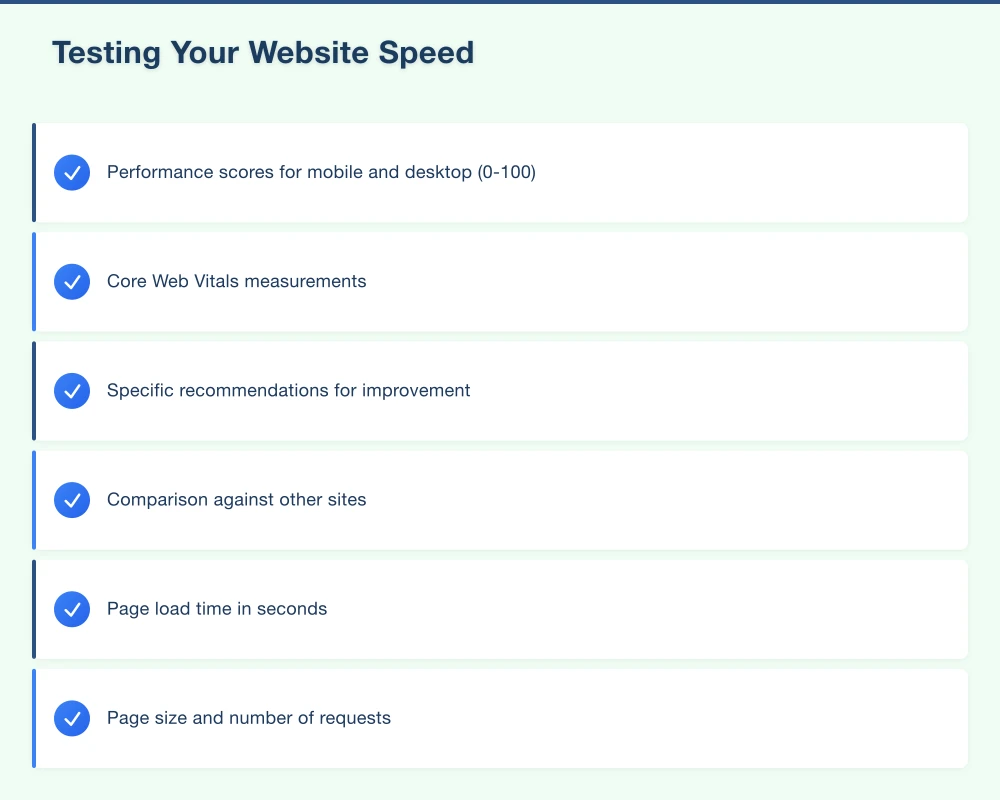
Visit pagespeed.web.dev and enter your website URL. You’ll receive:
- Performance scores for mobile and desktop (0-100)
- Core Web Vitals measurements
- Specific recommendations for improvement
- Comparison against other sites
Aim for scores above 50 for mobile (good) and above 70 for desktop (good). Scores above 90 are excellent.
GTmetrix
GTmetrix provides detailed performance reports including:
- Page load time in seconds
- Page size and number of requests
- Waterfall chart showing what loads and when
- Prioritized recommendations
The waterfall chart is particularly useful for identifying what’s slowing your site.
Your Own Experience
Test your site on your phone over mobile data (not WiFi):
- How long before you see meaningful content?
- Does the page jump around as it loads?
- Can you click buttons and links quickly?
Your experience approximates what customers experience.
What Makes Websites Slow
Understanding the causes helps prioritize fixes.
Images
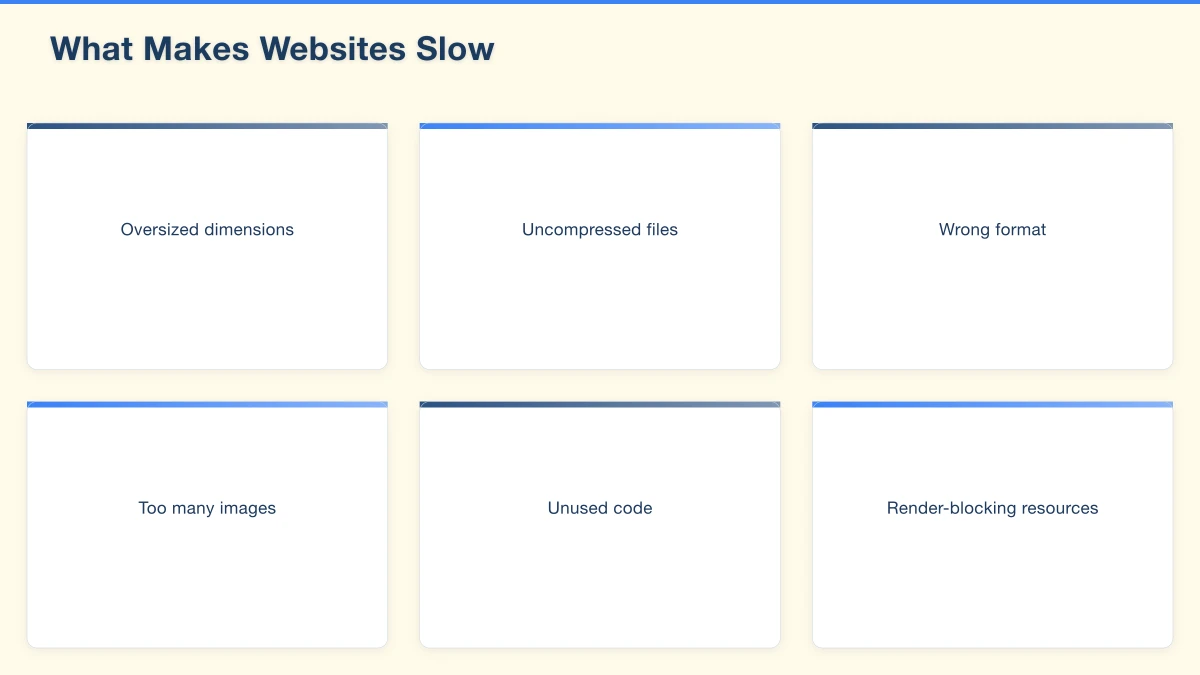
Images are typically the largest files on any webpage and the most common cause of slow loading. Problems include:
Oversized dimensions: Uploading a 4000-pixel-wide image when it displays at 400 pixels
Uncompressed files: Original camera images without optimization
Wrong format: Using PNG for photographs instead of JPEG or WebP
Too many images: Loading every product image on one page
Hosting
Budget shared hosting puts your website on servers with hundreds of other sites, all competing for resources. During busy periods, your site slows down because the server is overloaded.
Unoptimized Code
Websites load many files–HTML, CSS, JavaScript, fonts, and more. Problems include:
Unused code: Loading entire libraries when you only need a small feature
Render-blocking resources: Files that prevent the page from displaying until they finish loading
No caching: Forcing browsers to download the same files repeatedly
Too Many Plugins or Features
Every plugin, widget, chat tool, and tracking script adds weight to your site. Many load their own CSS and JavaScript files even on pages where they’re not used.
Server Location
If your hosting server is in the United States and your customers are in Western Sydney, data travels thousands of kilometres for every request. This geographic distance adds loading time.
Practical Speed Improvements
These fixes address the most common issues for small business websites.
Optimize Your Images
Image optimization often delivers the biggest speed improvements.
Resize before uploading: If an image displays at 600 pixels wide, resize it to 600-800 pixels before uploading. Don’t rely on the website to shrink it.
Compress images: Use tools like TinyPNG, Squoosh, or ImageOptim to reduce file sizes without visible quality loss. Most images can be compressed by 50-80%.
Use modern formats: WebP images are smaller than JPEG or PNG with similar quality. Most browsers now support WebP.
Implement lazy loading: Only load images when users scroll down to them. Most website platforms support this with a simple setting or plugin.
Improve Hosting
If you’re on budget shared hosting, upgrading makes a noticeable difference.
Options to consider:
- Quality shared hosting: Providers like SiteGround or Cloudways offer better performance than budget hosts
- Australian-based servers: Hosting in Sydney reduces latency for Australian visitors
- Managed WordPress hosting: If you use WordPress, specialized hosts like WP Engine optimize specifically for the platform
Expect to pay $15-50/month for quality hosting, compared to $5-10 for budget options. The performance difference justifies the cost.
Enable Caching
Caching stores copies of your pages so they don’t need to be generated fresh for every visitor.
Browser caching: Tells visitors’ browsers to store files locally. Returning visitors load your site faster because they already have the CSS, JavaScript, and images.
Page caching: Saves complete versions of pages on the server. Instead of building each page from the database, the server delivers the saved version instantly.
For WordPress sites, caching plugins like WP Rocket or W3 Total Cache handle this automatically.
Minimize Plugins and Scripts
Audit everything loading on your website:
Review each plugin: Do you actually use it? Is there a lighter alternative?
Remove unnecessary tracking: Do you need five different analytics tools? Consolidate.
Defer non-essential scripts: Chat widgets, social buttons, and analytics can load after the main content.
Check for conflicts: Some plugins duplicate functionality, loading similar code multiple times.
Use a Content Delivery Network (CDN)
CDNs store copies of your site on servers around the world. When someone visits, they receive files from the nearest server rather than your main hosting location.
For Australian businesses, a CDN ensures:
- Local visitors receive content from Australian servers
- International visitors still get reasonable performance
- Your main server handles less load
Cloudflare offers a free CDN tier that works well for small business sites.
Optimize Fonts
Custom fonts add personality to websites but can slow loading if not handled properly.
Limit font weights: Each weight (regular, bold, light) is a separate file. Use only what you need.
Use font-display: swap: This shows text immediately in a fallback font while the custom font loads, preventing blank text.
Consider system fonts: Modern system fonts look professional and load instantly because they’re already on visitors’ devices.
Platform-Specific Tips
WordPress
WordPress powers a significant percentage of small business websites. Optimization tips:
- Use a lightweight theme designed for speed
- Limit plugins to essential functionality
- Install a caching plugin (WP Rocket, LiteSpeed Cache, or W3 Total Cache)
- Optimize your database regularly
- Keep WordPress, themes, and plugins updated
Shopify
Shopify handles much of the technical optimization, but you can still improve:
- Use appropriately sized images
- Limit apps to those you actively use
- Choose a lightweight, well-coded theme
- Minimize custom code additions
Squarespace and Wix
These platforms manage hosting and code optimization themselves. Focus on:
- Image optimization before uploading
- Limiting third-party integrations
- Using built-in features rather than external widgets
- Choosing efficient templates
Custom Websites
If you have a custom-built website, work with your developer on:
- Code minification and compression
- Server-side caching
- Database query optimization
- Efficient asset delivery
What to Expect
Realistic Improvements
Most small business websites can achieve:
- 30-50% reduction in page load time
- PageSpeed scores improving by 20-40 points
- Significant reduction in bounce rate
Some sites see even better results, particularly if starting from a poor baseline.
Prioritizing Changes
If you can only do a few things:
- Optimize images (biggest impact for most sites)
- Enable caching (quick to implement, good results)
- Upgrade hosting if currently on budget shared hosting
These three changes address the most common issues.
When to Get Help
Consider professional help if:
- Your site scores below 30 on PageSpeed Insights
- Speed issues persist after basic optimization
- You’re not comfortable making technical changes
- The site is critical to your business and downtime isn’t acceptable
Monitoring Ongoing Performance
Website speed isn’t a one-time fix. Monitor regularly:
Monthly checks:
- Run PageSpeed Insights
- Review actual loading experience on mobile
- Check that caching is working
After changes:
- Test speed after adding new content or features
- Verify that plugins or updates haven’t affected performance
- Remove anything that significantly impacts loading
Set up alerts:
- Google Search Console notifies you of Core Web Vitals issues
- Some monitoring tools alert you if your site becomes significantly slower
Taking Action
A fast website provides better user experience, higher search rankings, and more conversions. For small businesses, speed improvements often deliver measurable returns.
Start with these steps this week:
- Test your current speed with PageSpeed Insights
- Identify your biggest images and optimize them
- Review your plugins or add-ons for unnecessary items
- Enable caching if you haven’t already
These basics address most small business website speed issues without requiring technical expertise.
At Cosmos Web Technologies, we help small businesses across Western Sydney build and optimize websites that load quickly and convert visitors into customers. Whether you need a complete website overhaul or targeted performance improvements, we’re here to help.
Want to know exactly what’s slowing down your website? Contact us for a free speed audit.
Your website’s performance depends on what’s behind it. Cloud Geeks provides the managed hosting, cloud, and IT support that keeps Australian SMBs online and secure.
Ash Ganda covers how Australian SMBs are using AI, automation, and digital strategy to grow without scaling costs proportionally.
If your business is also planning a customer-facing iOS or Android app — Awesome Apps builds cross-platform mobile apps for Australian SMBs.
Part of the Ganda Tech Services family, Cosmos Web Tech delivers specialist web design and digital marketing for Australian small and medium businesses.