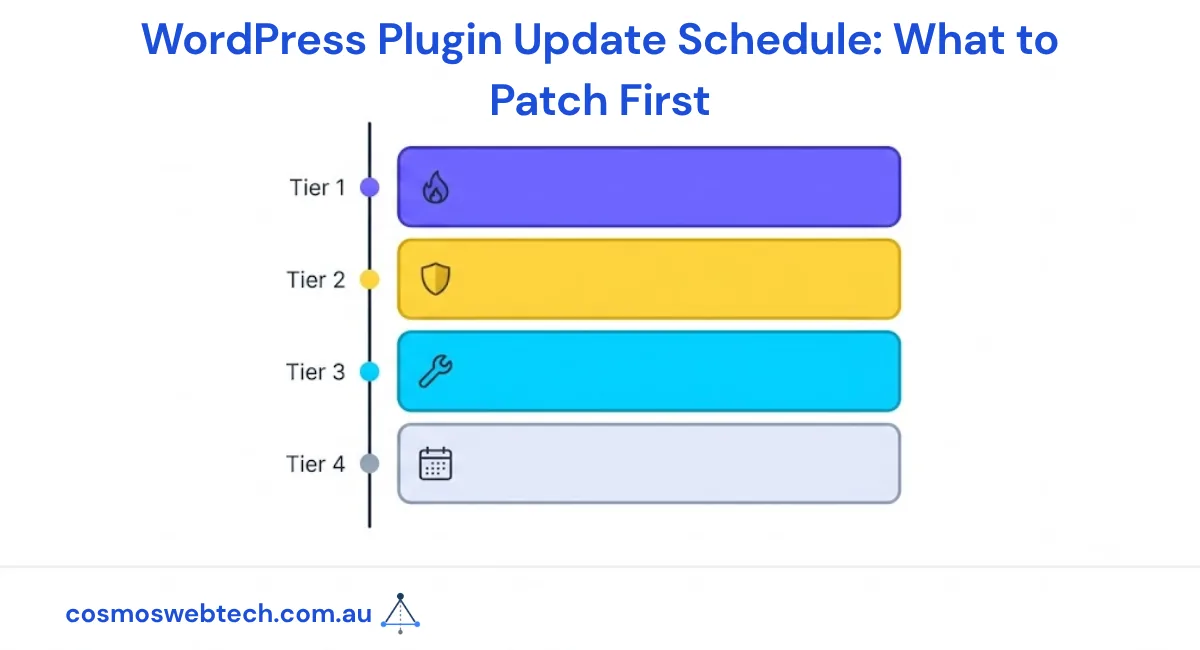
WordPress plugin updates are not all equal urgency. Security patches for actively exploited vulnerabilities must be applied within 24–48 hours. Minor feature updates can wait for your next scheduled maintenance window. Understanding which updates are critical and in what order prevents both security breaches and the site-breaking updates that happen when you update everything at once without a staging test.
Why Update Priority Matters
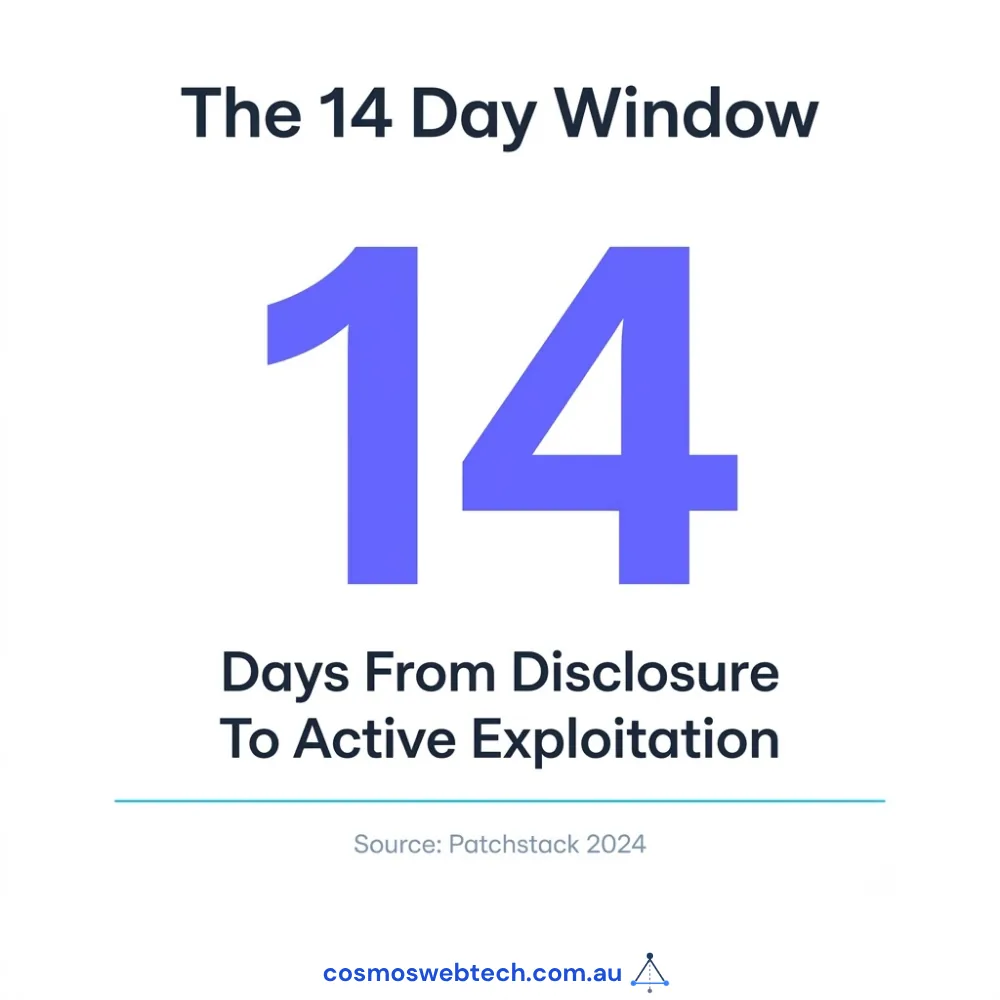
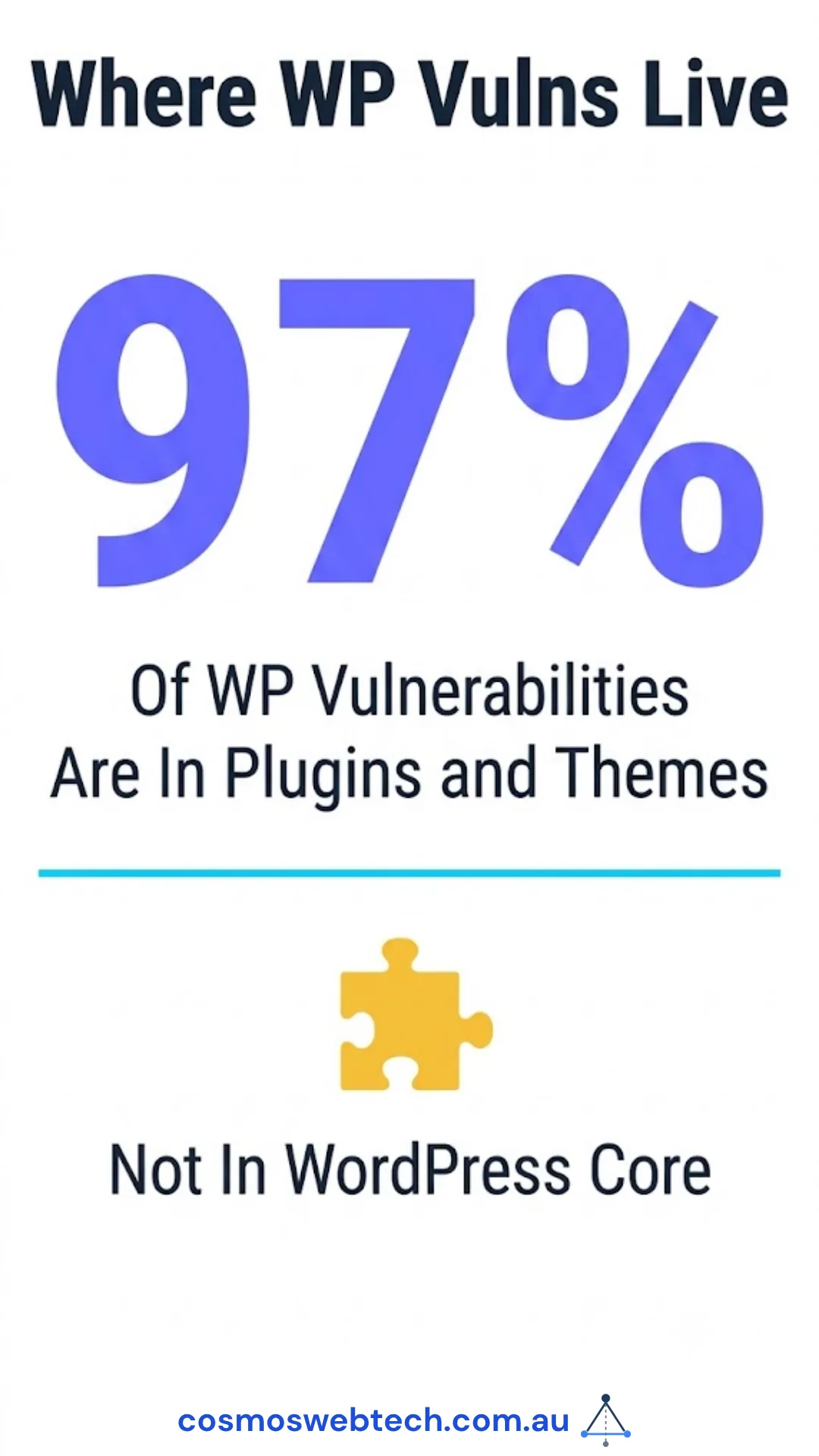
In 2024, over 97% of WordPress vulnerabilities were in plugins and themes, not WordPress core (Patchstack WordPress Vulnerability Report, 2024). The average time between vulnerability disclosure and active exploitation is now 14 days — down from 21 days in 2022. This means a “I’ll update it next month” approach creates a 2–3 week window of active exploitation risk.
However, updating 40 plugins simultaneously on a live site — without testing — is also how sites break. The correct approach is a tiered update schedule: critical security patches go today, everything else goes through a weekly or monthly workflow with staging.
The Four Update Tiers
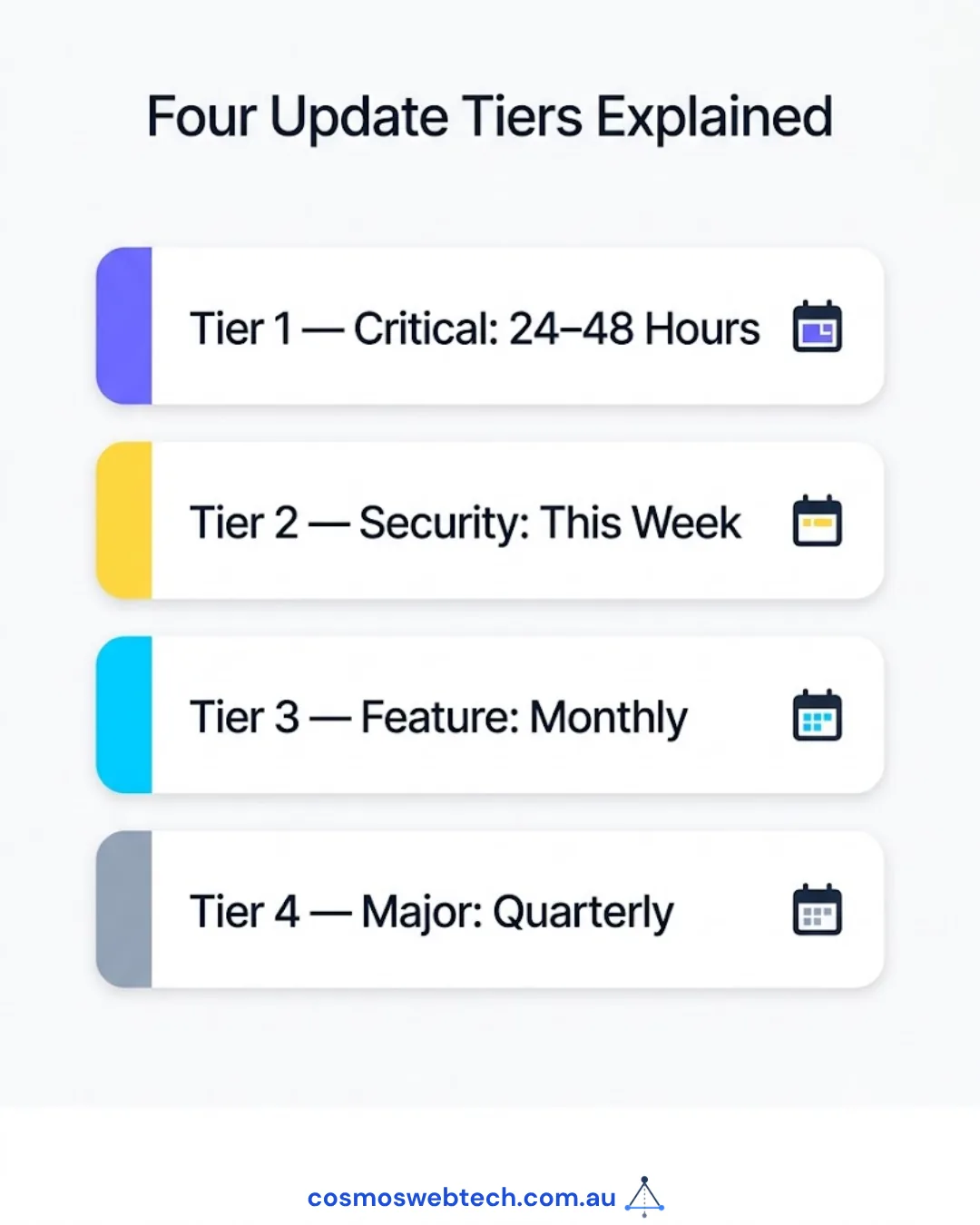
Tier 1: Critical Security Patch — Update Within 24–48 Hours
A critical security patch is any update that:
- Patches a vulnerability rated CVSS 7.0 or higher
- Is listed as “actively exploited” on the WordPress Vulnerability Database (wpscan.com) or Patchstack
- Fixes an authentication bypass, SQL injection, remote code execution, or file inclusion vulnerability
How to identify them: The update log message will say “security release” or “security fix”. Patchstack sends email alerts for plugins with critical vulnerabilities — subscribe free at patchstack.com.
What to update:
- WordPress core — always update immediately on a security release (not a feature release)
- Contact form plugins (Contact Form 7, WPForms, Gravity Forms) — high-traffic attack surface
- E-commerce plugins (WooCommerce, Easy Digital Downloads) — payment and data exposure risk
- Authentication plugins (any plugin touching login, OAuth, 2FA)
- File management plugins (any plugin that handles uploads)
Process: Test on staging if you have one. If not, take a backup immediately before updating, then update in production. Keep the backup for 7 days.
Tier 2: Security Update (Not Actively Exploited) — Update This Week
Security updates that patch vulnerabilities not yet actively exploited should be applied within 7 days. The window between disclosure and exploitation has shortened, so “not yet exploited” is a status that can change.
Process: Update in staging, test core functionality (forms, payments, navigation), push to production.
Tier 3: Feature/Compatibility Update — Monthly Maintenance Window
Updates that add new features, improve performance, or ensure compatibility with the current version of WordPress or PHP. These carry no security urgency but should not be deferred indefinitely — outdated plugins accumulate compatibility debt.
Process: Monthly maintenance window. Update all Tier 3 plugins in staging, run a full site test (home, contact form, key service pages), push to production.
Tier 4: Major Version Updates — Quarterly, With Testing
Major version updates (e.g. WooCommerce 7 → 8, Divi 4 → 5) often include breaking changes. These require:
- Full staging environment test
- Test all core user journeys (purchase, form submission, account creation)
- Review the changelog for deprecated functions that your theme or custom code may use
- Budget 1–4 hours of developer time for testing
Never update a major version directly on a live production site without a staging test.
The Monthly Maintenance Checklist (2026)
This is the complete monthly routine for an Australian SMB WordPress site:
Week 1 — Security
- Check Patchstack or WPScan for new vulnerabilities in your installed plugins
- Apply all Tier 1 and Tier 2 security updates (after backup)
- Verify WordPress core is on the latest minor release
- Review failed login attempts in your security plugin (Wordfence or MalCare)
Week 2 — Performance
- Run a PageSpeed Insights test and note Core Web Vitals scores
- Check Google Search Console for crawl errors
- Review uptime monitoring logs (if applicable)
Week 3 — Content and SEO
- Review Google Business Profile — update hours, add a post, check for new reviews
- Check for 404 errors in Search Console
- Update any posts with outdated statistics or dates
Week 4 — Full Update Cycle
- Backup entire site (files + database)
- Update all Tier 3 plugins in staging
- Test core site functions (forms, navigation, checkout if applicable)
- Update in production
- Verify site still works (browse key pages, submit a test form)
- Check PHP version — update if your hosting supports a newer version
Highest-Risk Plugins for Australian SMBs
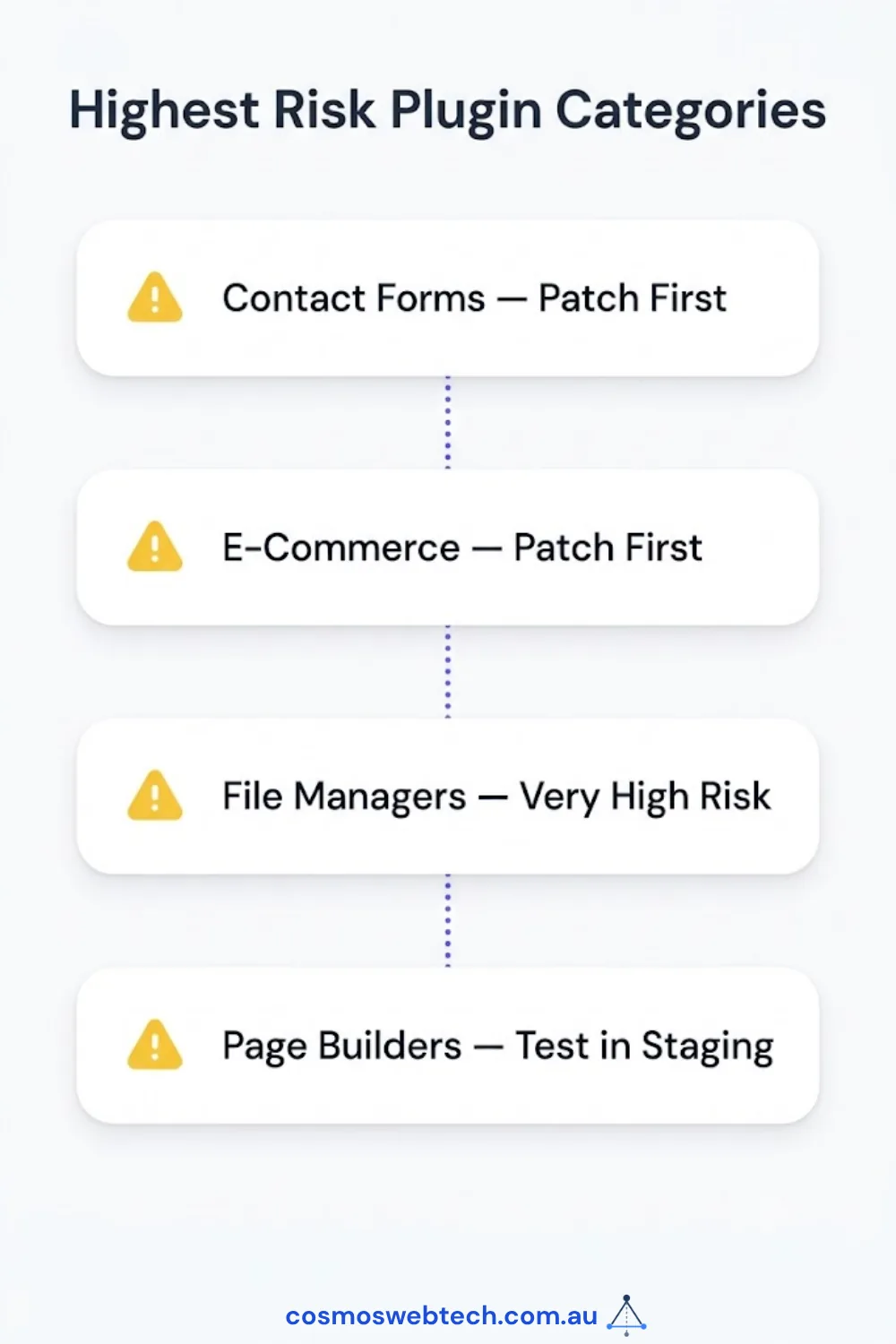
These plugin categories have the highest historical rate of critical vulnerabilities:
| Plugin Category | Risk Level | Examples | Action |
|---|---|---|---|
| Contact forms | High | Contact Form 7, WPForms, Ninja Forms | Subscribe to Patchstack alerts |
| E-commerce | High | WooCommerce, Easy Digital Downloads | Auto-update Tier 1 only |
| Page builders | Medium-High | Elementor, Divi, WPBakery | Test in staging before updating |
| SEO plugins | Medium | Yoast, RankMath | Generally safe to auto-update minor versions |
| File managers | Very High | WP File Manager | Subscribe to alerts; update immediately |
| Backup plugins | Medium | UpdraftPlus, BackupBuddy | Keep updated; these have broad file access |
| Social/sharing | Low-Medium | Various | Monthly cycle |
| Google Analytics | Low | GA4 plugins | Monthly cycle |
Should You Enable Automatic Updates?
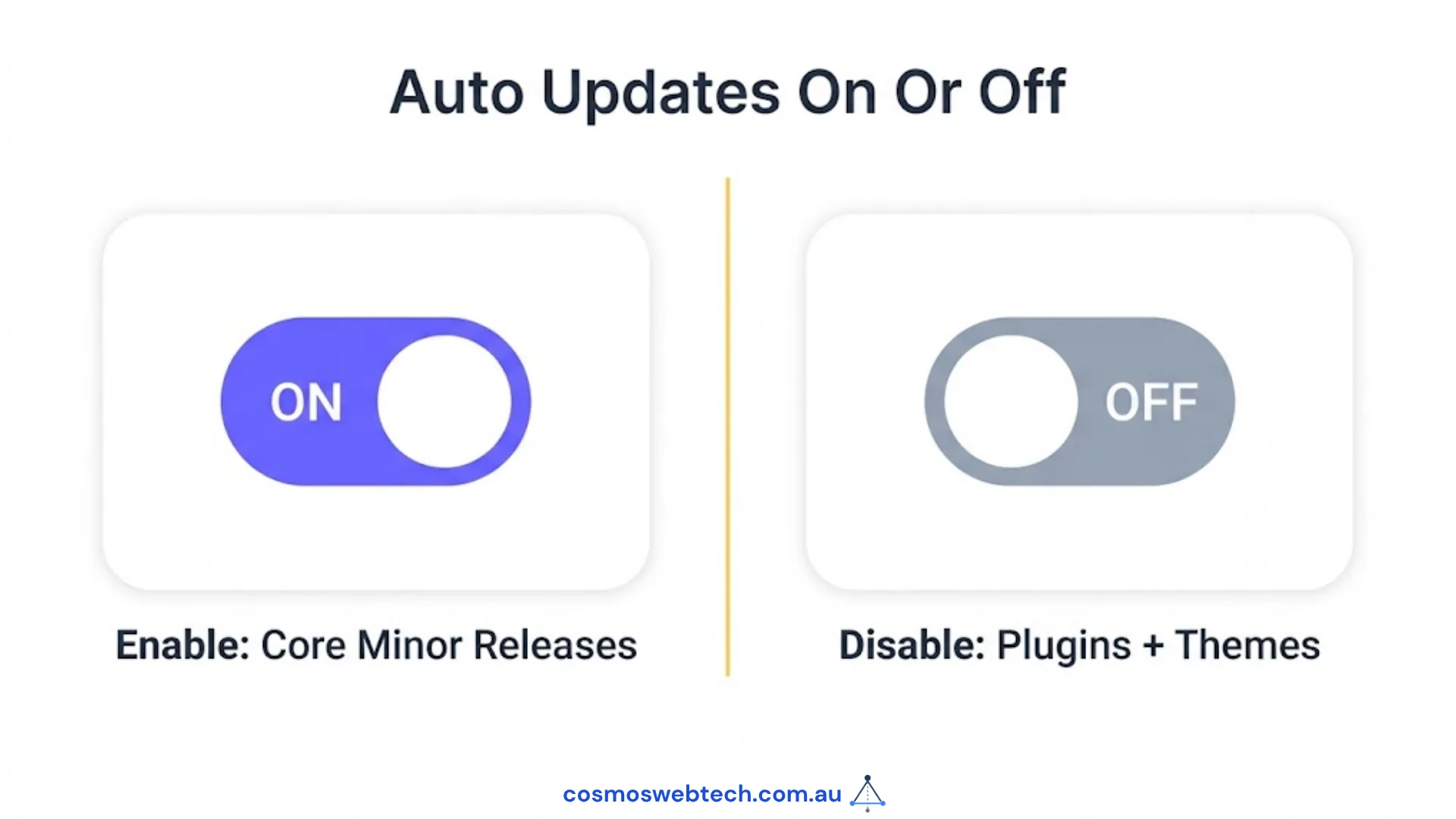
WordPress allows automatic updates for core and plugins separately:
| Automatic Update Setting | Recommended for SMBs? | Reason |
|---|---|---|
| WordPress core (minor releases) | Yes | Security patches; minor releases rarely break sites |
| WordPress core (major releases) | No | Test compatibility with plugins before upgrading |
| Plugin updates (all) | No — if no dev on staff | Updates can break sites; need backup + test workflow |
| Plugin updates (security only) | Yes — if using Patchstack/Wordfence | Targets critical patches only |
| Theme updates | No | Theme updates frequently overwrite customisations |
The best configuration for most Australian SMBs: automatic minor core updates enabled; plugin updates managed manually via a monthly maintenance workflow with Patchstack alerts for critical issues.
For businesses that need managed IT support to handle WordPress maintenance alongside broader technology infrastructure — Cloud Geeks provides monthly maintenance contracts for Australian SMBs covering plugin updates, security monitoring, and backups.
Ash Ganda covers how Australian business owners can build systems that surface security and maintenance issues before they become incidents.
Part of the Ganda Tech Services family, Cosmos Web Tech delivers specialist web design and digital marketing for Australian small and medium businesses.
Frequently Asked Questions
How often should I update WordPress plugins?
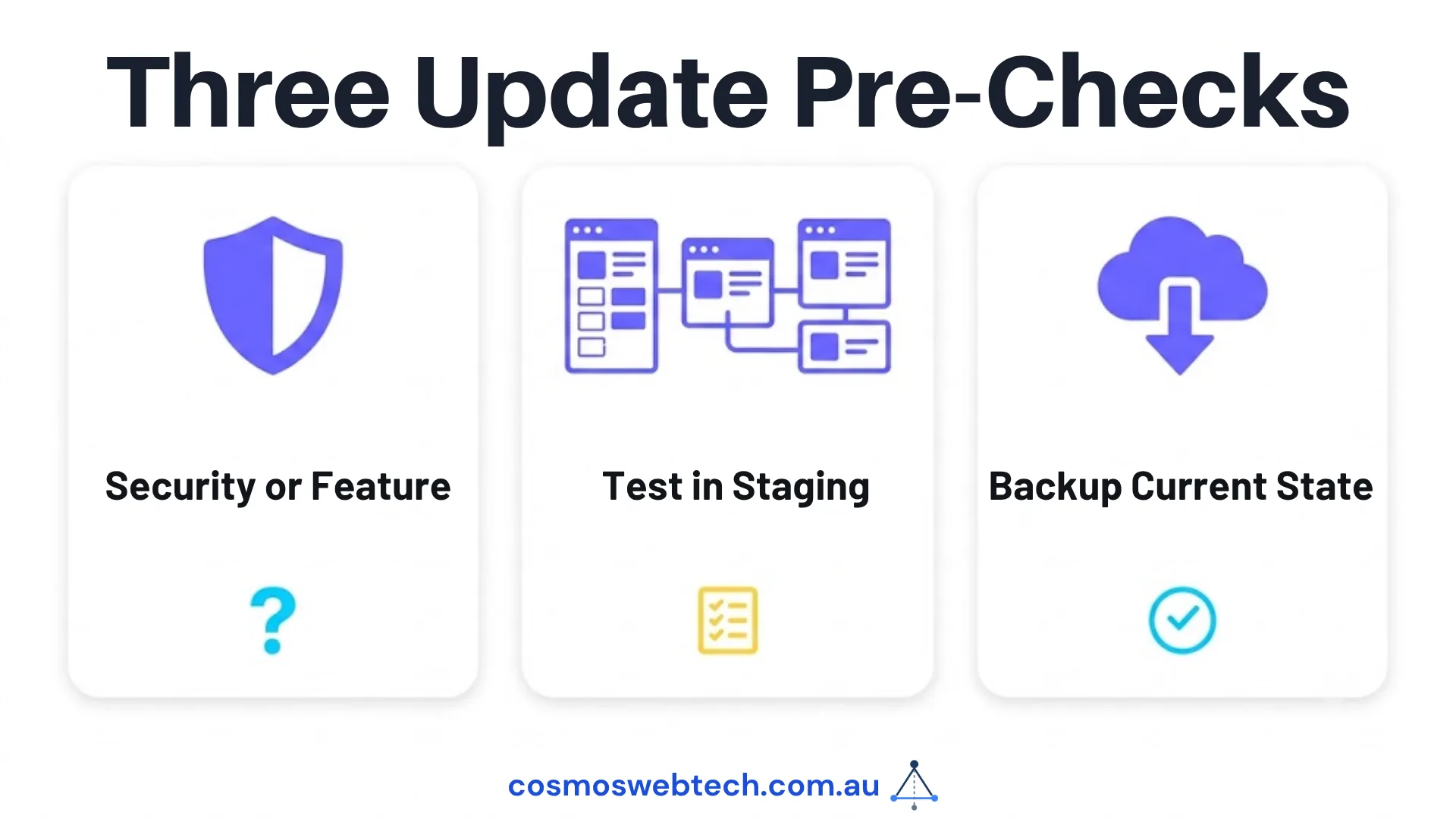
Critical security patches should be applied within 24–48 hours of release. Non-critical security updates should be applied within 7 days. Feature and compatibility updates should follow a monthly maintenance schedule. Major version updates should be tested in staging before going live.
Is it safe to update all WordPress plugins at once?
Updating all plugins simultaneously increases the risk that a conflicting update breaks your site and makes it harder to identify which update caused the problem. The safer approach is to update in batches (security patches first), test after each batch, and have a recent backup before you start.
What happens if I don’t update my WordPress plugins?
Unpatched plugins are the most common cause of WordPress site hacks. Attackers use automated scanners to identify sites running vulnerable plugin versions. The average time between vulnerability disclosure and active exploitation is now 14 days. A site running a plugin with a known vulnerability is actively at risk within two weeks of the disclosure.
How do I know if a WordPress update is a security fix?
The update log in the WordPress dashboard shows a brief description of what changed. The word “security” in the description is the signal. For more detail, Patchstack (patchstack.com) and WPScan (wpscan.com) maintain free vulnerability databases where you can search by plugin name and version.