We checked our own blog last week and found 606 links that were not really there.
They were not broken links. They were not links to deleted pages. They were links that had been written properly and pointed at real posts — and nobody had ever seen a single one of them. Not one visitor. Not Google. They were never put on the page.
Here is exactly what happened, because you can check your own site for the same thing this afternoon.
What we found
Every post on our blog is a file. At the top of that file is a short list of settings: the title, the date, the tags, and a list of related posts to show at the bottom.
A while back we ran a script over the blog. For 221 of our 466 posts, it worked out which three or four other posts were the closest match, and it wrote those choices into the files. That came to 610 links, and 606 of them pointed at posts that still existed.
The checker that reads those files was happy. “Related posts” is a setting it knows about, so it allowed it. Nothing broke. Nothing warned us.
But the page design file — the one that decides what actually gets drawn on the screen — never looked at that setting.
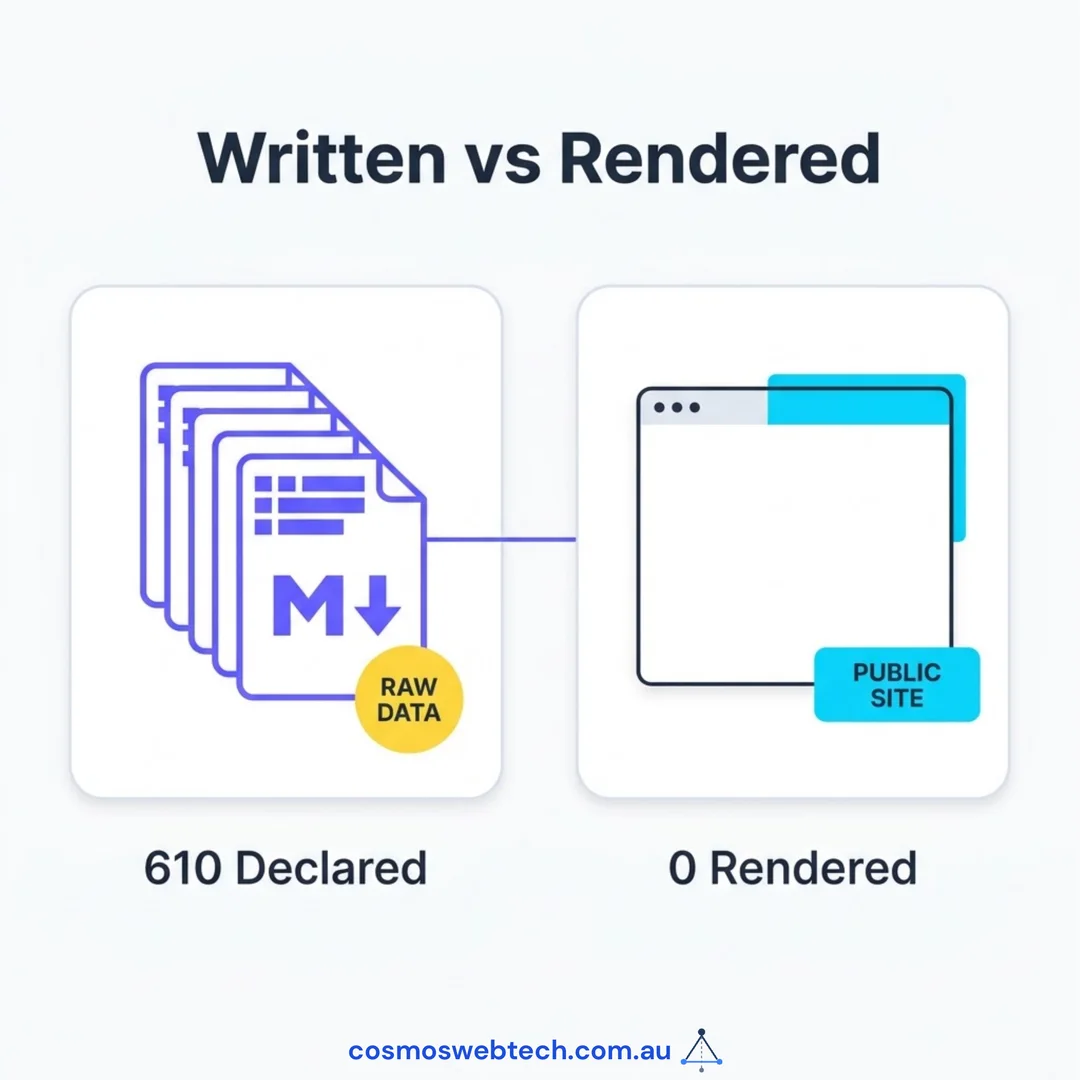
So the links existed in the file, and only in the file. Here is the count from the finished website, which is the only place that counts:
| Related links on the site | |
|---|---|
| Before | 0 across 634 pages |
| After | 606 links across 219 pages |
The same day we checked our sister site, CloudGeeks, and found 671 links in the same state. 229 of its 449 posts had related-post settings that nothing put on the page. Same mistake. Completely different website.
Why nobody noticed for months
This is the part worth slowing down for, because nobody was careless.
Every single step said it had worked:
- The script ran and reported that it had written 606 links. True.
- The file checker passed, because the setting was allowed. True.
- The website was rebuilt with no errors and no warnings. True.
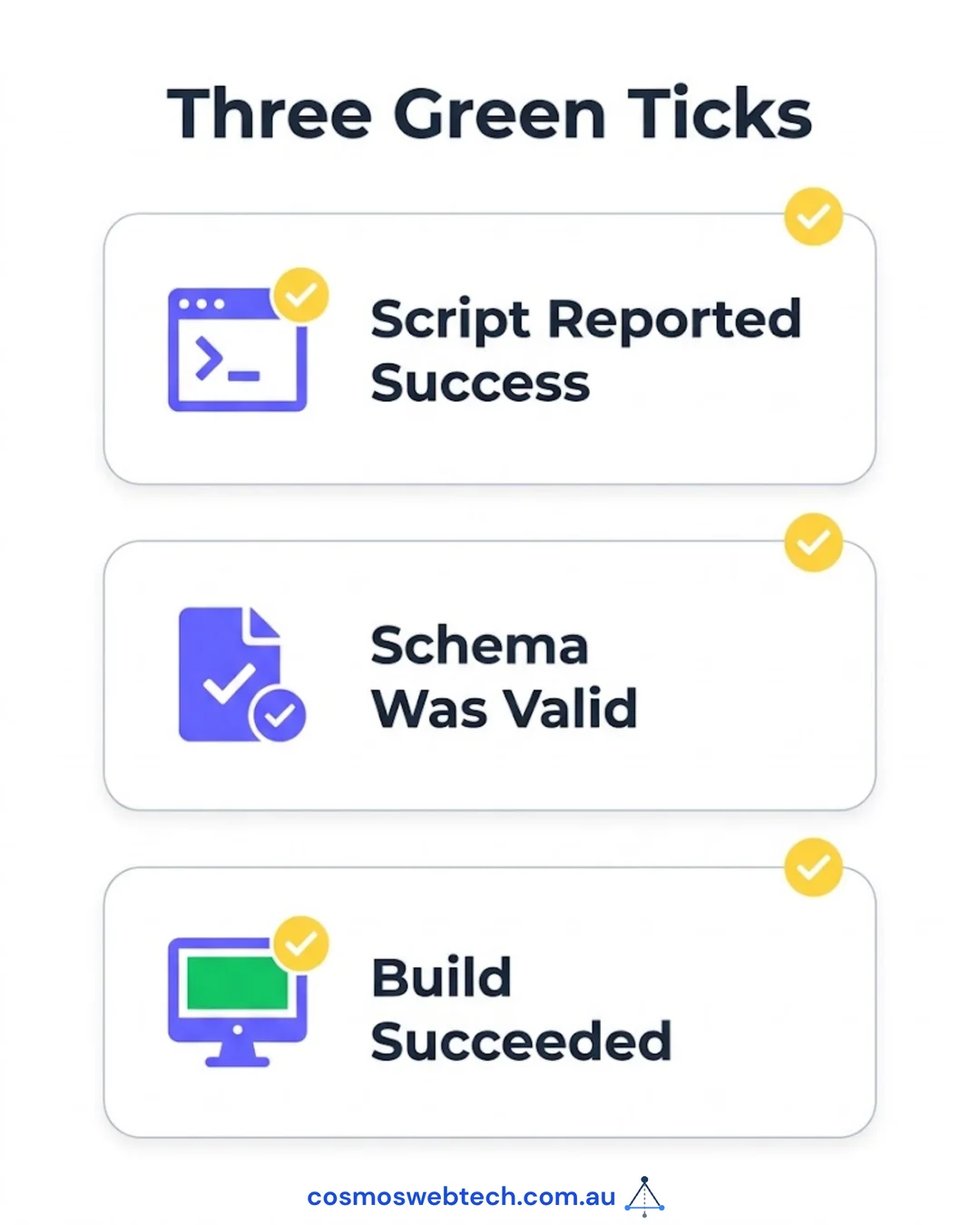
Three green ticks, all of them honest. And nothing told us anything was missing, because nothing knew the links were supposed to be there in the first place.
Not one of those checks asked the question that actually mattered: is the link on the finished page that a browser downloads?
This has now caught us three times this year. Two of our main photos were quietly replaced by error messages for four months, and every check said the photo was where it should be. Another script once wrote 369 files into a folder that nothing else opened, and cheerfully reported “369 written, 0 failed”. Every word of that was true. All of it was useless.
The pattern never changes: the check looks at what you wrote, and what you wrote is not what gets sent to the visitor.
Why 606 internal links are worth caring about
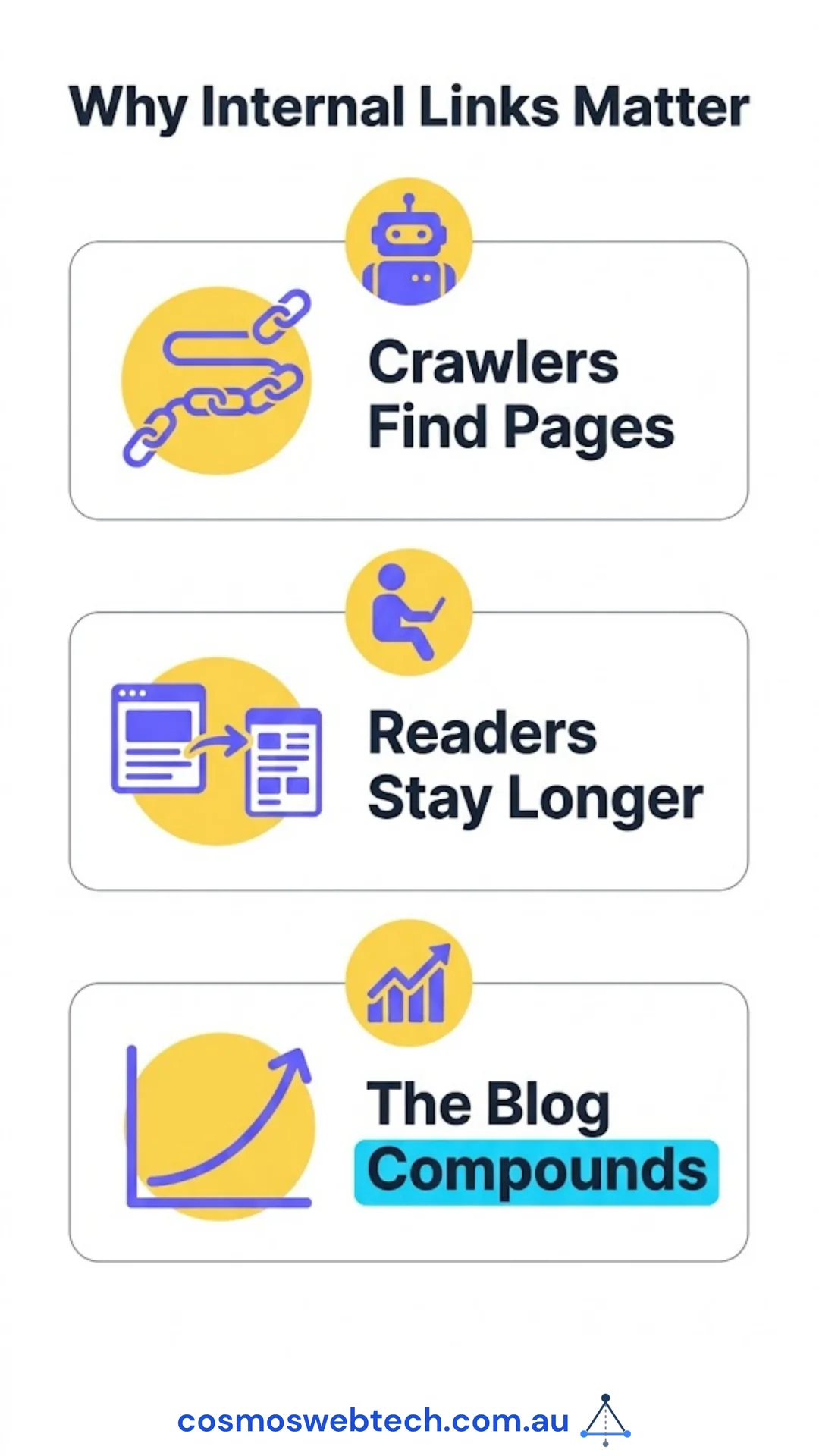
Linking your own posts to each other sounds like a small technical detail. It is not. Three things happen when you do it.
Google finds your older posts. Google works its way around the internet by following links, one to the next. A post with nothing pointing at it is almost invisible to it. It gets looked at less often, and it does worse in search results.
Readers stay longer. Someone reads your post about website costs, sees three related posts at the bottom, and clicks one. That is a reader you keep. Someone who reaches the end and finds nothing has been handed straight back to Google, who will happily send them to a competitor instead.
The blog builds on itself. For a Hills District business with 40 or 50 posts, this is the difference between a blog that grows stronger over time and 50 separate leaflets that happen to share a website.
The five-minute check you can run yourself
You do not need a tool or a subscription. You just need a browser.
- Open one of your blog posts in Chrome.
- Right-click on the page and choose View Page Source. Do not choose “Inspect”. View Page Source shows you the code your website actually sent out, which is exactly what Google reads.
- Press Ctrl+F, or Cmd+F on a Mac, and search for the web address of one of your other posts.
Find it, and your links are real. Do not find it, and they are not on the page — no matter what your website editor shows you when you are logged in.
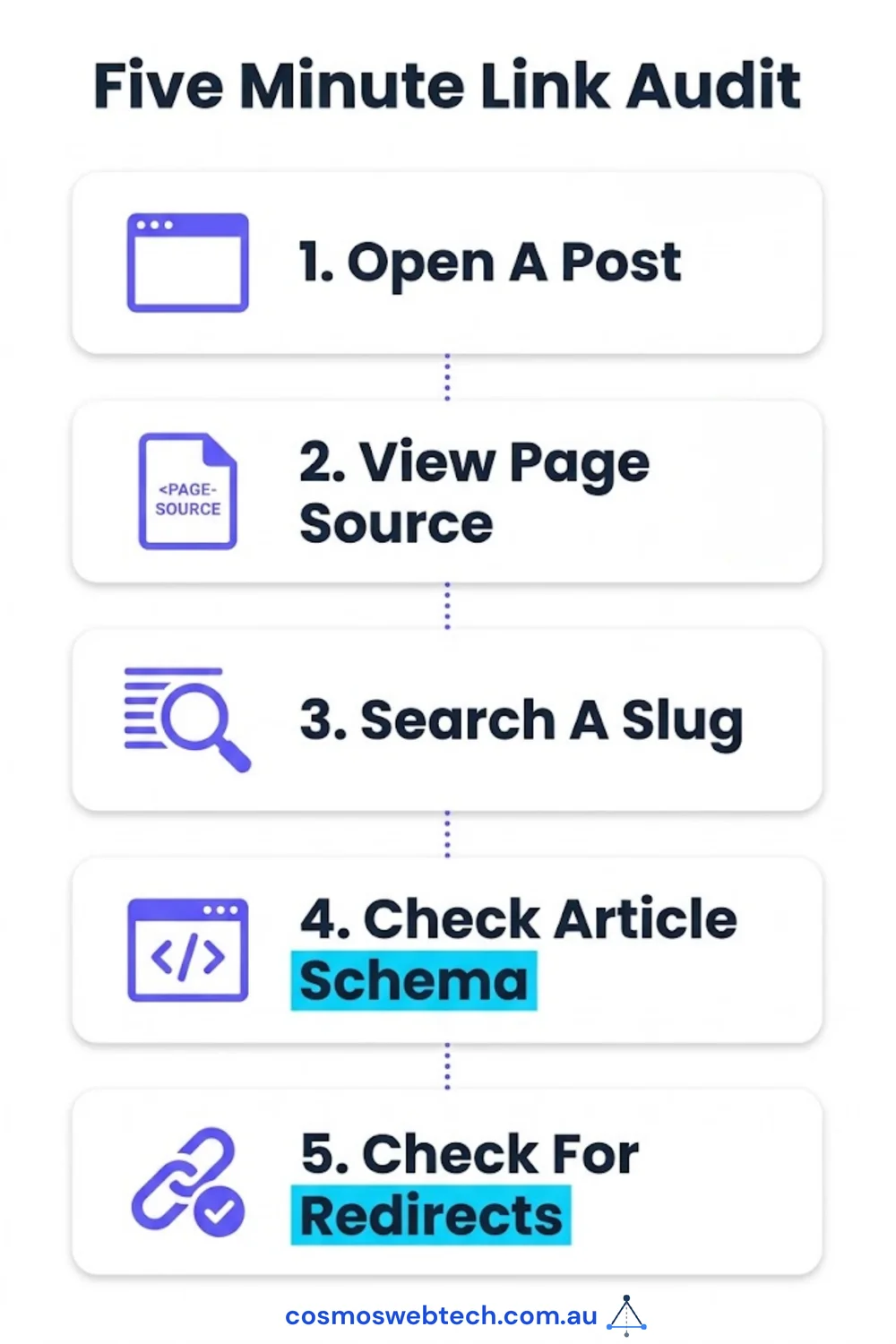
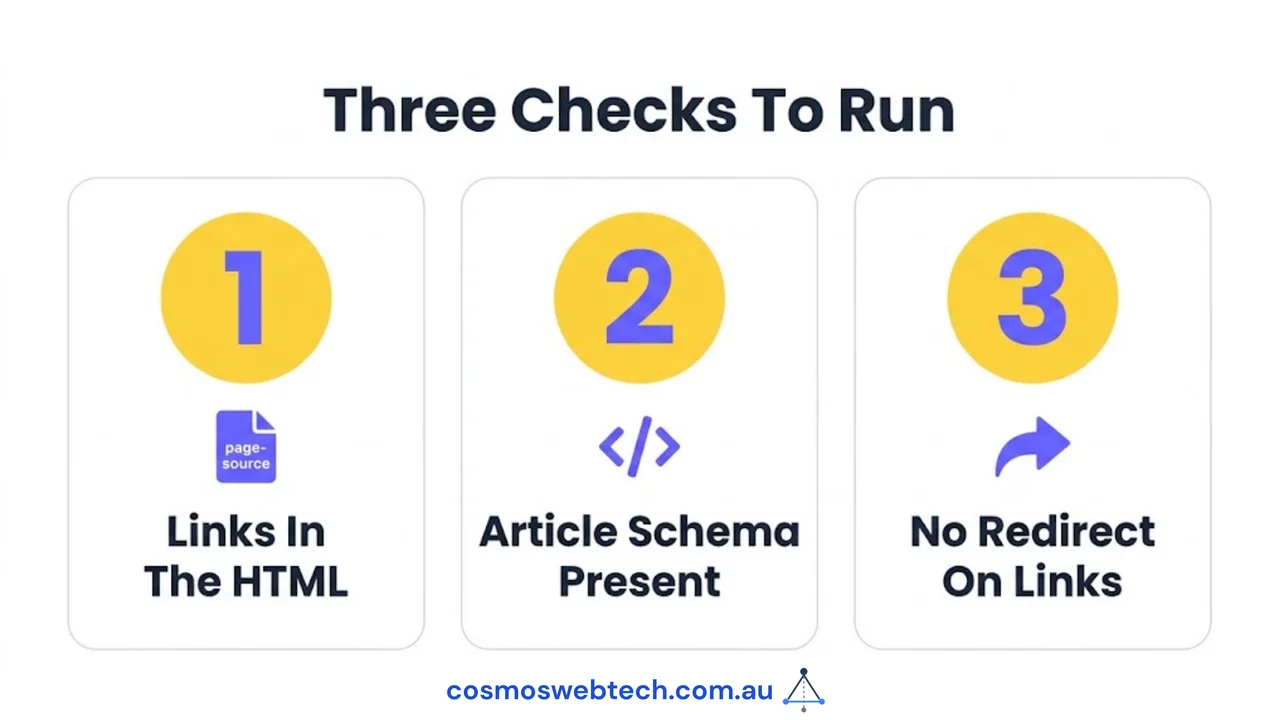
Try it on three posts, including your oldest one. While you are in there, check two more things, because in our case all three were broken together.
- Search that same page code for the word
Article. This is a small block of code that tells Google “this page is a news article, here is who wrote it and when”. Ours was written into the design file and never given any information to show. Our app site had the same problem across 447 posts. Our parent company site did not have the code at all. - Check that your links do not bounce. Web addresses on our site all end in a slash. Our related links were pointing at versions without one. Every click on those was sent to the wrong address first and then bounced across to the right one. It still works, but it wastes a step, every single time.
What we changed, and what we did not fix
The fix was small. Look up each related post once, while the website is being built and already has the full list of posts in front of it, then draw the links on the page. About twenty lines of code.
Two decisions mattered more than the code did.
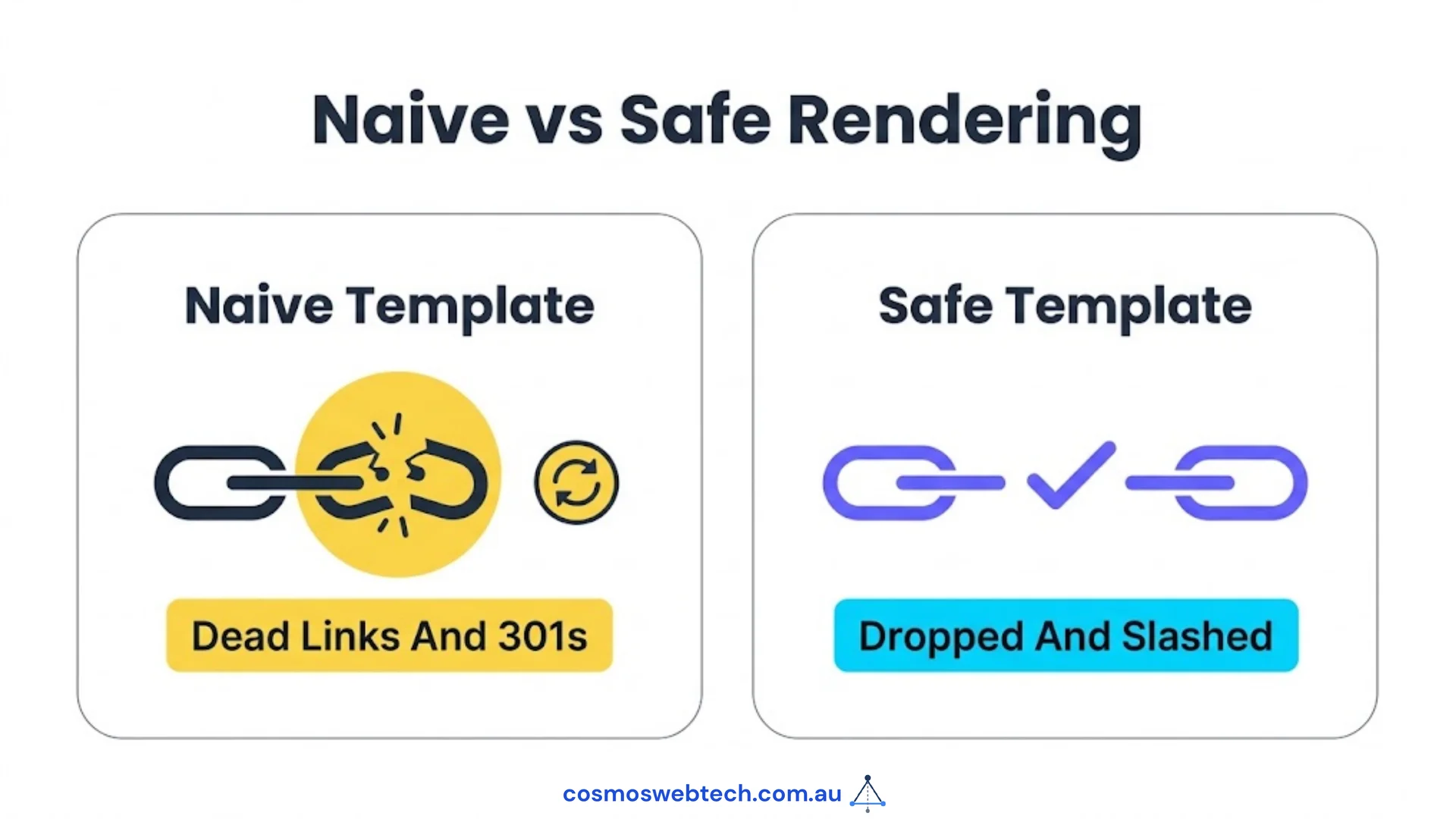
Links to deleted posts are thrown away, not drawn. Four of the 610 links pointed at posts that no longer exist. If we had simply drawn whatever the file said, we would have published four links straight to a “page not found” — worse than having no links at all.
The slash at the end is on purpose. Every address on the site ends with one, so the related links do too. Otherwise every one of them would waste that extra bounce.
Now the honest part: this did not fix the real problem. Those 606 links only reach 182 different posts. The script had picked the same popular handful over and over, which leaves 284 posts with nothing pointing at them at all. Fixing that needs a script that deliberately favours the posts nobody links to, instead of only the ones that match best. We ran exactly that on another site and took 35 forgotten posts from zero links to at least two each.
We are not finished. But 606 links that only existed in a file are now 606 links on the page, and that is a much better place to start from.
The general lesson
If you remember one thing: a job is not done because the information is correct. It is done when it is on the page a visitor actually downloads.
Every piece of software between what you write and what your visitor sees is capable of quietly dropping something while telling you everything went fine. The only check that cannot mislead you is the one that reads the finished page.
If you would like us to run that check on your site, get in touch — it is the first thing we do on every SEO job now, and it takes about a day.
Frequently asked questions
How do I know if my related links are really showing? Open a blog post, right-click, choose View Page Source, and search for the web address of another one of your posts. If it is not in there, it is not on the page — no matter what your website editor shows you.
What if the links get added by code after the page loads? That is a risk. Google can read those, but it does it later and not always properly. Links that are in the page from the start get found reliably. Links added afterwards might not be.
How many links should each blog post have? We aim for at least three links out to other posts, and at least three other posts linking back in. It is a sensible floor for making sure nothing gets forgotten, not a magic number.
Will fixing this improve my Google ranking straight away? No. Google takes weeks to re-read a site. What changes immediately is that your older pages can be reached at all, which has to happen before they can rank.
What is an orphan page? A page with no links pointing at it from anywhere else on your own site. Google might still find it through your sitemap, but it will check it less often and treat it as less important than the pages you link to yourself.
Building or checking a website for a Western Sydney business? Cosmos Web Tech handles the design, the build and the technical SEO. If your systems need work too, our colleagues at CloudGeeks cover cloud and managed IT, and Awesome Apps build the mobile side. All part of GTS.